
There was a Tuesday afternoon about three years ago when I found myself sitting at my desk, staring blankly at my laptop screen, feeling a profound sense of digital exhaustion.
I had just spent the last forty-five minutes doing the exact same sequence of tasks I had done the previous Tuesday, and the Tuesday before that. I was downloading PDF invoices from my email inbox, renaming them with the date and client name, and dragging them into a specific Google Drive folder for my accountant. After that, I manually opened my calendar, counted how many hours I had logged for the week, and typed that number into a separate spreadsheet.
It was entirely mindless, robotic work. I wasn’t using my creativity or my problem-solving skills. I was just acting as a slow, inefficient human bridge between two pieces of software that refused to talk to each other.
Suddenly, my phone buzzed. It was a calendar reminder telling me to text my partner that I was leaving the office soon so they could start dinner. I picked up the phone, typed the exact same message I typed every single day—“Heading home now, see you in 30!”—and hit send.
As I put the phone back down, it hit me. I was carrying around a piece of glass and metal that contained more computing power than the Apollo 11 spacecraft, and I was using it like a glorified digital notepad. The “smartphone” wasn’t actually doing anything smart. It was just waiting for me to manually poke at its screen.
I realized that a massive chunk of my day was being eaten alive by microscopic, repetitive administrative chores. Five minutes here, ten minutes there. It didn’t feel like much in the moment, but over the course of a year, I was losing hundreds of hours to tasks that a computer could theoretically do in milliseconds.
I decided I was done acting like a robot. I wanted my phone to work for me, quietly handling the boring logistics of my life in the background while I focused on the things that actually mattered.
If you feel like you are constantly drowning in digital busywork, you don’t need a personal assistant. You just need to learn how to set up the right rules. Here is exactly how I automated my daily tasks using mobile apps, buying back hours of my life every single week.
The Foundation: Understanding “If This, Then That”
Before we dive into the specific apps, you need to understand the basic philosophy of mobile automation. You do not need to know how to write a single line of code to do this. You just need to understand basic cause and effect.
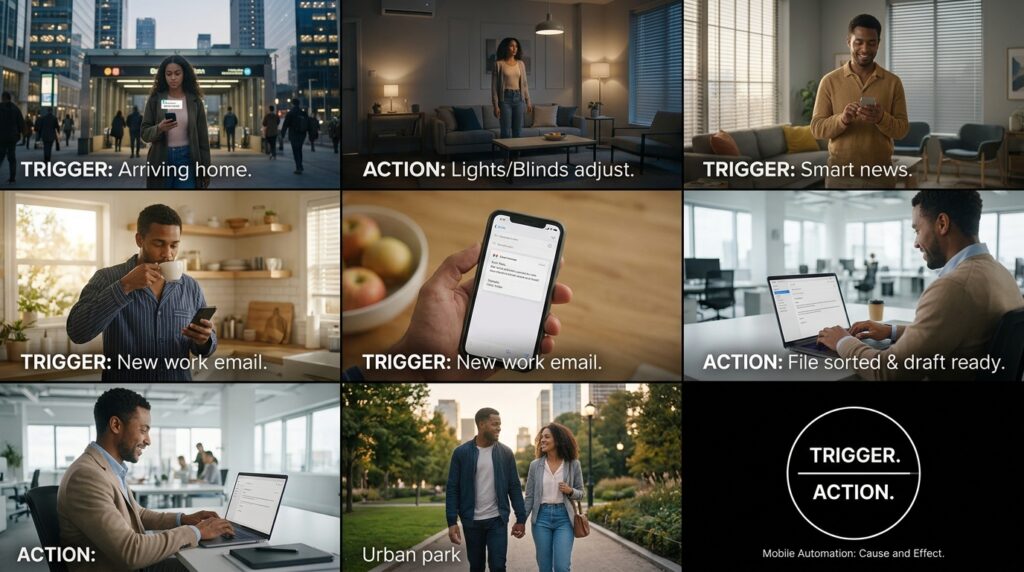
Every automation in the world relies on a simple formula: Trigger and Action.
Think of it as a domino effect. The “Trigger” is the first domino falling over. It is an event that happens, like receiving an email, arriving at a specific GPS location, or the clock hitting 7:00 AM. The “Action” is what the software automatically does in response to that trigger.
If it rains tomorrow (Trigger), Then send a push notification to my phone to bring an umbrella (Action).
Once you start looking at your daily life through the lens of Triggers and Actions, you will start seeing opportunities for automation everywhere.
1. IFTTT: Connecting the Disconnected
When I first started my automation journey, I downloaded an app called IFTTT, which literally stands for “If This, Then That.” It is the absolute best entry point for beginners because the interface is incredibly visual and user-friendly.
IFTTT acts as a universal translator between apps that normally don’t speak to each other. It connects your Spotify to your smart lights, your weather app to your calendar, and your social media to your cloud storage.
I immediately tackled my agonizing Tuesday invoice problem.
I set up an “Applet” (IFTTT’s word for an automation) with a very specific rule. The Trigger: If I receive an email in my Gmail account with the word “Invoice” in the subject line, and it contains an attachment. The Action: Automatically extract that attachment and save it to a specific folder in my Google Drive called “Tax Year 2024.”
The first time it happened, it felt like magic. An email hit my phone, and before I could even open it to read the text, a second notification popped up from Google Drive confirming the PDF had already been filed away perfectly. I never had to drag and drop a receipt again.
I expanded this logic to my content consumption. I love reading articles, but I hate losing track of them. I set up an automation so that anytime I “Liked” a video on YouTube or “Saved” a post on Reddit, IFTTT automatically copied the link and pasted it into a master reading list in my note-taking app. This seamless flow of information is a massive part of the workflow I described in (The Apps That Make My Work Life So Much Easier). I stopped manually bookmarking things and let the software build my library for me.
2. Apple Shortcuts: The Deep OS Integration
While IFTTT is great for web services, I wanted something that could manipulate the physical hardware of my phone. Since I use an iPhone, I dove headfirst into the native Apple Shortcuts app. (If you are on Android, Tasker or Macrodroid offer even more powerful equivalents).
Apple Shortcuts is built directly into the operating system, meaning it has deep access to your battery, your GPS, your text messages, and your settings.
I started automating my physical location.
I built a Shortcut based on a geographic trigger. The Trigger: When my phone’s GPS detects that I have left the physical perimeter of my office building. The Action: Calculate the current traffic drive time to my apartment, open iMessage, draft a text to my partner saying, “Leaving work now! ETA is [Drive Time] minutes,” and send it automatically.
I literally do not touch my phone. I walk out the glass doors of my building, and my phone handles the communication in my pocket.
I also created a “Gym Mode” automation. The Trigger: When my phone connects to the specific Bluetooth network of my wireless workout headphones. The Action: Turn the phone volume to 80%, turn on “Do Not Disturb” so no calls come through, open my workout tracking app, and start playing my “Heavy Lifting” playlist on Spotify.
The simple act of putting my headphones over my ears transforms the phone’s entire operating state, prepping me for a workout without requiring a single tap.
3. Zapier: The Professional Workhorse
Once I had my personal life running smoothly, I turned my attention to my freelance work. For heavy-duty, multi-step professional automation, I use Zapier. It is significantly more powerful than IFTTT and is designed strictly for business productivity.
My client onboarding process used to be a massive headache. A new client would fill out an inquiry form on my website. I would get an email. I would then copy their name and email, paste it into my CRM (Customer Relationship Management) software, open Google Calendar to create a reminder to call them, and then draft a welcome email manually.
With Zapier, I turned this five-step, twenty-minute process into a zero-second, invisible background event.
Now, when a client hits “Submit” on my website form (The Trigger), Zapier catches the data. It automatically creates a new contact card in my database, generates a customized Google Drive folder with their name on it, schedules a follow-up reminder on my calendar for the next morning, and instantly sends them a pre-written, personalized welcome email thanking them for reaching out.
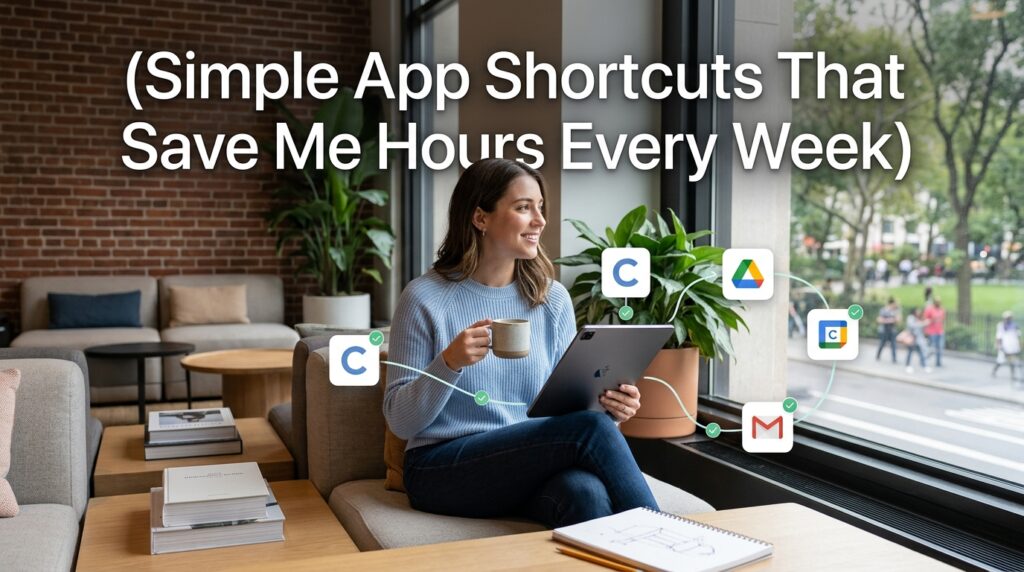
By the time I actually pick up my phone to see the initial notification, all the administrative filing has already been completed perfectly. Learning how to connect these professional dots was a game-changer, and it’s a concept I touch upon when sharing (Simple App Shortcuts That Save Me Hours Every Week). When your business runs on autopilot, you can actually focus on doing the creative work your clients are paying you for.
4. NFC Tags: The Physical Automation Triggers
Automating based on time and location is brilliant, but sometimes you want a physical, tactile trigger. You want to touch something in the real world and have your digital world react.
This is where NFC (Near Field Communication) tags come in.
NFC tags are tiny, cheap stickers that contain a microchip. Your smartphone can read these chips simply by tapping the top of the phone against the sticker. You can buy a pack of twenty NFC stickers online for about ten dollars.
I bought a pack and started sticking them around my apartment. Using the Apple Shortcuts app, you can program your phone to execute an action whenever it scans a specific sticker.
I put a sticker on the base of my bedside lamp. Now, when I am exhausted and ready to sleep, I don’t navigate through menus to set my alarms and turn off the lights. I simply tap my phone against the lamp. The NFC tag triggers my “Sleep Mode” shortcut: it turns off all the smart lights in the apartment, sets my wake-up alarm for 6:30 AM, turns my phone screen brightness down to zero, and begins playing white noise.
I put another sticker on the dashboard of my car. When I tap it, it automatically opens Google Maps, routes me to my favorite coffee shop, and pulls up my podcast app.
It feels like living in a science fiction movie. You are physically interacting with the objects in your environment to command your digital software. Setting up this specific nighttime tag was the final piece of the puzzle I needed, a transformation I discussed deeply when outlining (How I Built a Productive Daily Routine Using Apps). A good routine shouldn’t require willpower; it should just happen automatically.
5. Financial Automation: The “Set It and Forget It” Wealth Builder
We spend a lot of time talking about automating our tasks, but the most important thing you can possibly automate is your money.
Human beings are emotional creatures. If you manually transfer money into your savings account every month, you are eventually going to experience a month where you feel a little tight, and you will convince yourself to skip the transfer. “I’ll double it next month,” you tell yourself. You never do.
I removed my own emotional decision-making from my finances completely.
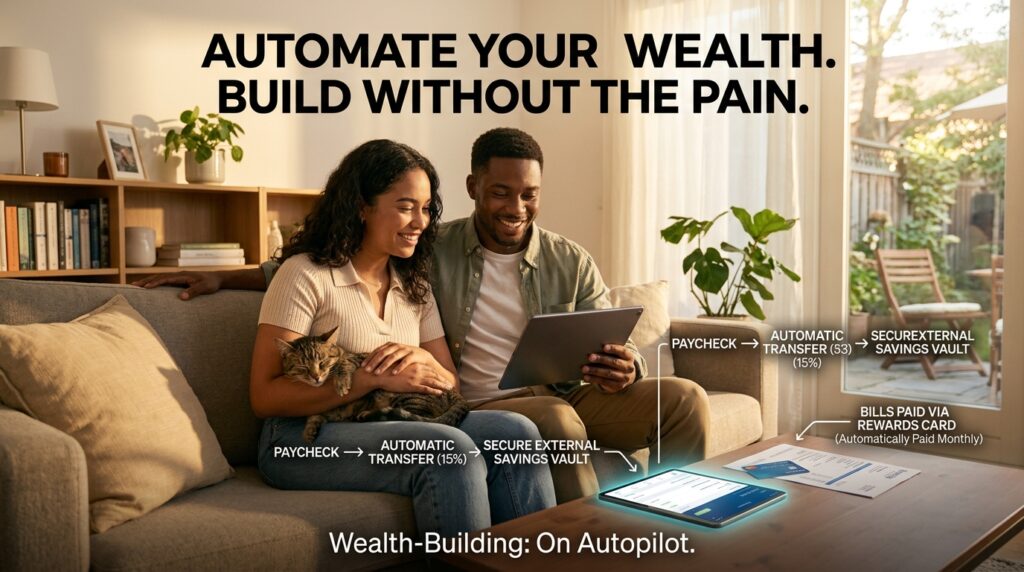
I use my banking app to automate the flow of every single dollar that enters my account. I set up a rule: three days after my paycheck clears, exactly 15% of the total balance is automatically transferred out of my checking account and into a high-yield savings account at a completely different, external bank.
I intentionally made the savings account difficult to access so I couldn’t impulsively transfer the money back when I wanted to buy something unnecessary.
I also automated all of my fixed utility bills. They are charged directly to a rewards credit card, which is then automatically paid off in full every month from my checking account. I literally never look at a due date.
By automating my finances, I never feel the psychological pain of “saving.” The money just quietly disappears into an investment vault before I ever have the chance to spend it. Wealth building becomes a background process, running silently while I go about my day.
Final Thoughts on Reclaiming Your Time
There is a common misconception that automating your life makes you robotic, cold, or disconnected. People worry that by letting software send texts or manage emails, they are losing their personal touch.
The reality is the exact opposite.
When you spend your day manually typing the same text message, sorting the same PDF files, and clicking the same buttons, that is when you are acting like a robot. You are wasting your uniquely human consciousness on mindless, repetitive drudgery.
Automation is about delegation. You are taking the lowest-value tasks in your life and handing them off to a machine that can execute them flawlessly, without ever getting tired.
When you free up those ten minutes in the morning and those twenty minutes in the afternoon, you don’t just get your time back; you get your mental bandwidth back. You have more energy to be present with your family, more creativity to pour into your passion projects, and more peace of mind knowing that the logistical gears of your life are turning smoothly in the background.
Don’t let your smartphone just be a screen for consuming content. Open the shortcuts app today. Find one tiny, annoying thing that you do every single day, and build a rule to make it happen automatically. Once you experience the profound relief of a digital chore completing itself, you will never look at your phone the same way again.
