
A few years ago, I had a sudden, terrifying realization while sitting in the driver’s seat of my car.
I had just finished a long day at the office. I started the engine, pulled out my phone, and performed my daily ritual: I swiped down to turn off the office Wi-Fi so my phone wouldn’t cling to a weak signal. I opened my podcast app and queued up my favorite daily news show. I opened Google Maps to check the traffic on the highway. Finally, I opened my messaging app and typed the exact same text I sent every single weekday: “Leaving the office now, see you in 30 mins!”
It took me about two minutes to complete this sequence.
On its own, two minutes is nothing. But then I did the math. Two minutes a day, five days a week, fifty weeks a year. I was spending over eight hours a year—an entire workday—just poking at my phone in the exact same sequence before driving home. And that was just one of my repetitive routines.
Think about your own digital life. How many times a day do you manually lower your screen brightness when you get into bed? How often do you copy and paste the same email response? How many times do you manually turn on “Do Not Disturb” before a meeting?
We are carrying around devices that contain more computing power than the machines that mapped the human genome. Yet, we use them like digital typewriters, manually pressing buttons over and over again to execute mindless administrative chores.
The moment I realized I was acting like a slow, inefficient robot, I decided to fire myself from doing my own digital busywork. I embarked on a mission to make my “smartphone” actually smart.
If you are tired of being a servant to your device, it is time to flip the dynamic. Here is my comprehensive, step-by-step guide on how to automate repetitive tasks on your phone, buying back your time and reclaiming your mental bandwidth.
Phase 1: The Core Philosophy of “If This, Then That”
Before you download any crazy software or start tinkering with advanced settings, you have to understand the fundamental language of automation. You do not need to know how to code. You just need to understand basic cause and effect.
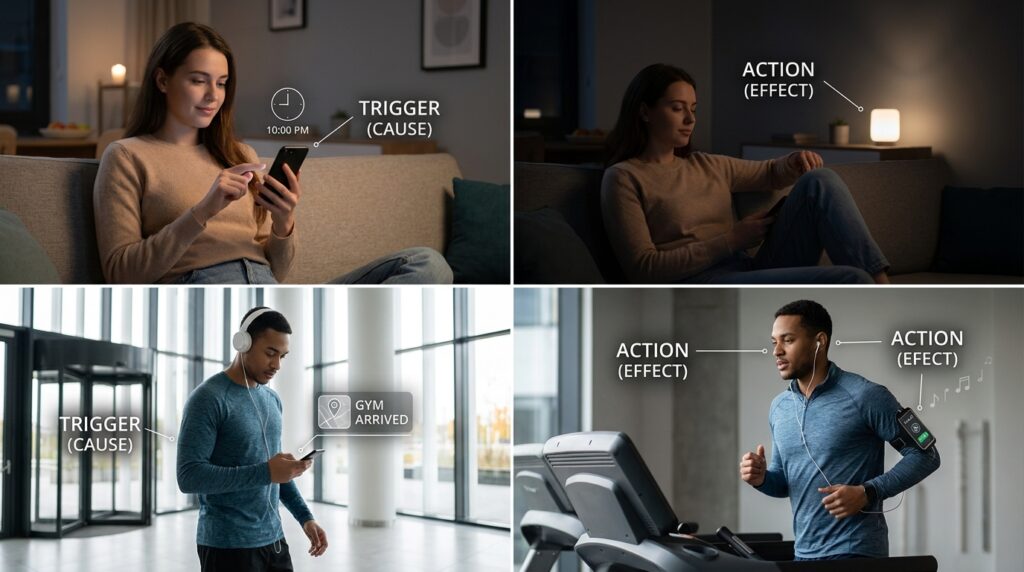
Every automation in existence operates on a single, universal formula: The Trigger and The Action.
Think of it like a digital domino effect.
-
The Trigger is the first domino. It is the condition that must be met. (e.g., If it is 10:00 PM; If I arrive at the gym; If my battery drops below 20%).
-
The Action is what happens automatically as a result. (e.g., Then turn off the lights; Then open my workout playlist; Then turn on low-power mode).
Once you start looking at your daily frustrations through the lens of Triggers and Actions, the matrix completely opens up. You stop seeing a phone that requires your constant input, and you start seeing an eager digital butler just waiting for instructions.
Phase 2: Mastering Native Automations
You don’t necessarily need to crowd your phone with expensive, third-party apps to start automating your life. The operating systems themselves have become incredibly powerful, a reality I broke down completely when I wrote about (Tricks to Automate Your Phone Without Installing New Apps).
If you are on an iPhone, your secret weapon is the Apple Shortcuts app (specifically the “Automation” tab at the bottom). If you are on an Android device, you want to use Bixby Routines (for Samsung) or Tasker / Google Assistant Routines.
I started by tackling my annoying commute ritual.
Inside the Shortcuts app, I created a new Personal Automation based on a Bluetooth trigger.
-
The Trigger: When my phone connects to my car’s specific Bluetooth network (named “Honda Civic”).
-
The Action: The phone immediately sets the media volume to 80%, opens Google Maps to check the route home, opens Spotify, hits “Play” on my favorite playlist, and sends an automated text message to my partner saying I am on my way.
Now, I literally just turn the key in the ignition. The car wakes up, the Bluetooth connects, and my phone executes the entire five-step sequence while sitting untouched in my cup holder. The relief of this tiny, frictionless moment at the end of a long workday is impossible to overstate.
Phase 3: Unleashing Location-Based Magic (Geofencing)
Time-based triggers are great, but location-based triggers (known as geofencing) feel like actual witchcraft.
Your phone’s GPS is constantly tracking where you are. You can use this geographical data to command your phone to change its behavior the exact second you cross an invisible, digital border.
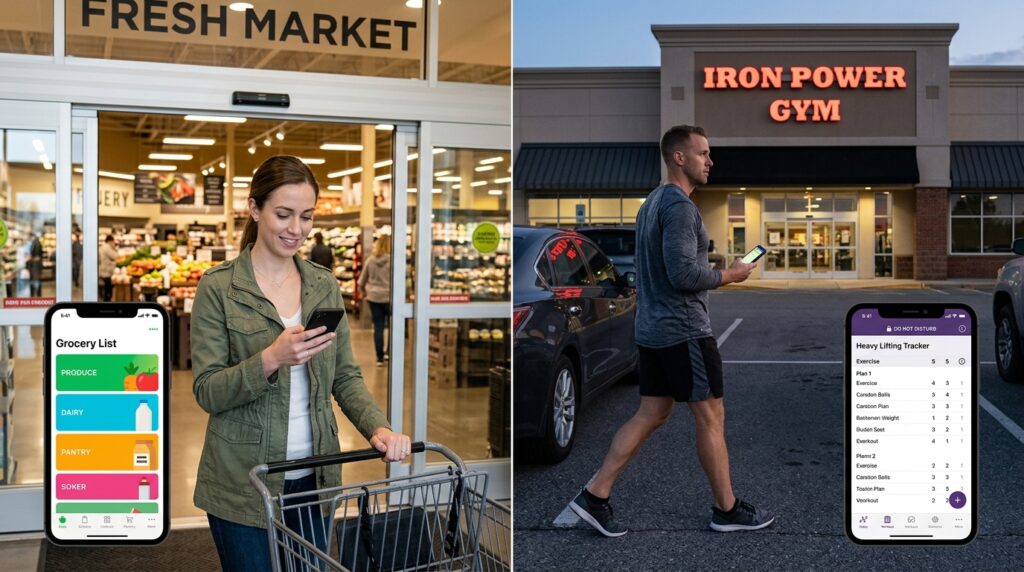
One of my biggest recurring problems was the grocery store. I would build a beautiful, organized grocery list on my phone while sitting on my couch. But when I actually walked into the supermarket, I would get distracted by the displays, put my phone in my pocket, and completely forget to check the list until I was already driving home.
I set up a location automation.
-
The Trigger: When I physically arrive at the address of my local grocery store.
-
The Action: My phone vibrates, bypasses my lock screen, and automatically opens my digital grocery list app front and center.
I don’t have to search for the app. The moment I step through the automatic sliding doors, my list is staring me in the face.
I use this same geofencing logic for the gym. When my GPS registers that I am in the gym parking lot, my phone automatically turns on “Do Not Disturb” mode so my workout isn’t interrupted by work emails, and it launches my heavy lifting tracker. My environment dictates my software.
Phase 4: The Power of NFC Tags
Sometimes, location and time aren’t specific enough. Sometimes you want a physical, tactile trigger in the real world to initiate a digital routine. This is where NFC (Near Field Communication) tags come into play.
NFC tags are tiny, sticker-like microchips that cost about fifty cents each. They require no batteries. When you tap the top edge of your smartphone against one of these stickers, it instantly triggers a specific automation.
I bought a pack of these stickers and placed them strategically around my apartment.
The best one is stuck to my bedside table. Before this tag, my nighttime routine involved lying in bed, staring at the bright screen, manually setting three alarms, opening a white noise app, and adjusting the volume.
Now, when I am exhausted, I simply lay my phone down on the bedside table so it taps the invisible sticker.
-
The Trigger: Scanning the bedside NFC Tag.
-
The Action: The phone sets an alarm for 6:30 AM, dims the screen brightness to zero, turns off my bedroom’s smart lights, and begins playing the sound of rain falling on a tent.
It feels like living on a spaceship. Interacting with the physical world to command your digital software is a massive upgrade to your daily flow, and it’s a concept that is deeply tied to the philosophy I explained in (How I Turn My Phone Into a Personal Assistant). You stop managing the phone, and the phone starts managing you.
Phase 5: Automating Your Communication (The Auto-Reply)
We are expected to be constantly available. If someone texts you, the societal expectation is that you will text them back within five minutes. If you don’t, people assume you are angry with them or in an emergency.
This constant pressure to reply fractures your focus.
You can automate your boundaries. Both iOS and Android have advanced “Focus Modes” that allow you to set up highly specific auto-replies based on the context of your day.
When I need to do deep, uninterrupted work, I activate a custom “Deep Work Focus.”
-
The Action: The phone silences all incoming notifications. If anyone texts me, the phone automatically replies: “Hey! I am currently in a deep work block until 3:00 PM and my notifications are paused. I will get back to you as soon as I emerge. If this is an absolute emergency, call me twice.”
This completely eliminates the guilt of ignoring my phone. My contacts know exactly why I am not responding, they know when I will respond, and they have a bypass option if the building is literally on fire.
You can also automate scheduled text messages. If I remember at 11:30 PM that I need to wish a client a happy birthday the next morning, I don’t send the text right then (which is unprofessional), and I don’t rely on my memory to do it at 9:00 AM (because I will forget). I draft the text and schedule it to send automatically the next morning. The task leaves my brain immediately, but executes perfectly on time.
Phase 6: System Settings on Autopilot
Beyond messaging and music, you should also automate the deep system settings of the device itself to preserve battery life and reduce visual friction.
Adjusting these underlying mechanics is arguably the highest-leverage thing you can do, which is why I constantly recommend revisiting (App Settings I Changed That Boosted My Phone’s Productivity).
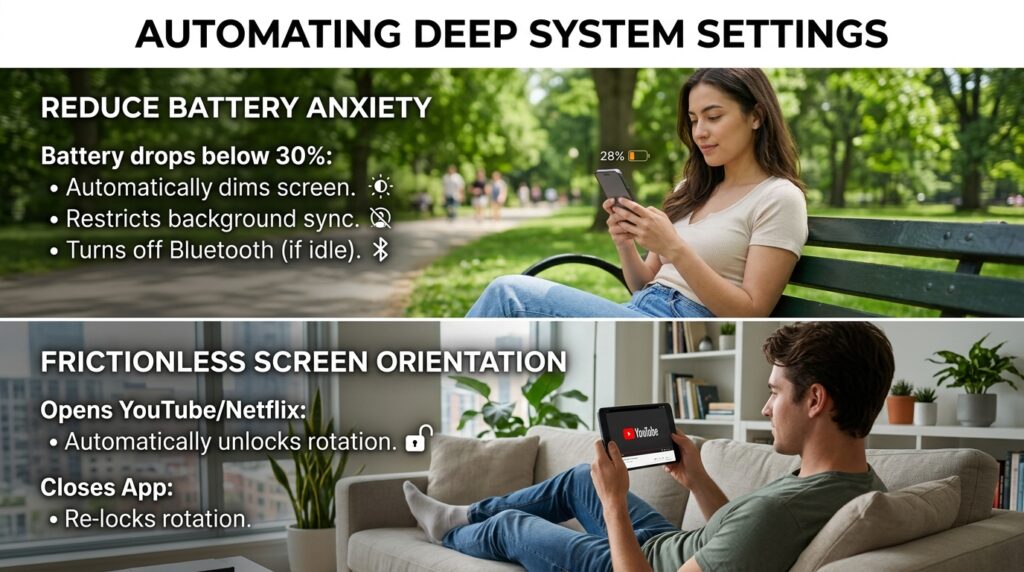
For example, battery anxiety is a very real modern phenomenon. I automated my power management.
-
The Trigger: When my battery drops below 30%.
-
The Action: The phone automatically turns down the screen brightness, restricts background app refresh, turns off Bluetooth (if not connected to a device), and switches into low-power mode.
I never have to frantically dig through my settings menu to save my battery; the phone realizes it is dying and performs its own triage.
I also automate my screen orientation. I hate having my screen auto-rotate when I am reading an article in bed, but I absolutely need it to rotate when I open YouTube to watch a video. So, I built a routine: the system-wide auto-rotate is permanently locked off, but the moment I open the YouTube or Netflix app, the phone automatically unlocks the rotation. When I close the app, it locks it again. It removes a tiny, annoying friction point that used to bother me ten times a day.
Final Thoughts on Your Digital Delegation
When people hear the word “automation,” they often picture complex lines of code, intimidating server rooms, or a dystopian future where robots control our lives.
The reality is much softer, much more personal, and deeply practical.
Automating your phone is not about being lazy. It is about recognizing the true value of your own cognitive energy. Every time you have to decide to turn off your Wi-Fi, or remember to text your spouse, or manually set an alarm, you are burning a microscopic amount of mental fuel. By the end of the day, those hundreds of micro-decisions add up to genuine, exhausting decision fatigue.
When you offload the mindless, repetitive chores to the microprocessor inside your phone, you are performing an act of digital self-care.
You are protecting your attention. You are buying back those two minutes in the car, those five minutes in the morning, and that underlying sense of administrative dread.
Take thirty minutes this weekend to look at your daily habits. Identify the things you do on your screen every single day without thinking. Open your phone’s shortcut or routine app, set up a simple Trigger and Action, and run the experiment. The first time you watch your phone flawlessly execute a sequence of chores entirely on its own, you will realize you have permanently leveled up your digital life. The future is automated; you just have to give the commands.
