
There was a very specific moment when I realized that I wasn’t actually the owner of my smartphone; I was its employee.
It happened late one evening as I was getting into bed. I laid down, pulled the blanket up, and proceeded to execute my nightly digital ritual. I swiped down on my screen to lower the brightness. I manually toggled on “Do Not Disturb” mode. I opened my clock app to ensure my 6:30 AM alarm was set. I opened my podcast app, navigated to my sleep sounds playlist, and set a sleep timer.
It took me about ninety seconds.
Ninety seconds doesn’t sound like a long time, but as I lay there staring at the ceiling, I realized I had performed that exact sequence of taps, swipes, and clicks every single night for the past three years. I was acting like a human macro. I had a supercomputer resting on my nightstand, a device capable of processing billions of calculations per second, and I was manually spoon-feeding it basic instructions like it was a microwave from 1995.
For a brief moment, I considered opening the app store and hunting down one of those complex, expensive third-party automation apps to handle my routines. But then I stopped myself. Why should I have to install more bloatware, give a random developer access to my private data, and drain my battery life just to make my phone do what it should inherently know how to do?
I decided to dig into the native architecture of my device. What I found was a completely hidden layer of raw power. Both iOS and Android operating systems have massively powerful automation engines built right into the factory software, but they bury them deep in the settings menus where the average user never looks.
You do not need to download sketchy third-party software, learn how to code, or pay a monthly subscription to make your phone smart. You just need to know which levers to pull. If you are tired of acting as a digital servant to your device, here are the absolute best tricks to automate your phone using only the native tools it came with.
1. Discovering the Native Engines (Shortcuts and Routines)
Before you can start hacking your daily life, you have to find the engine room.
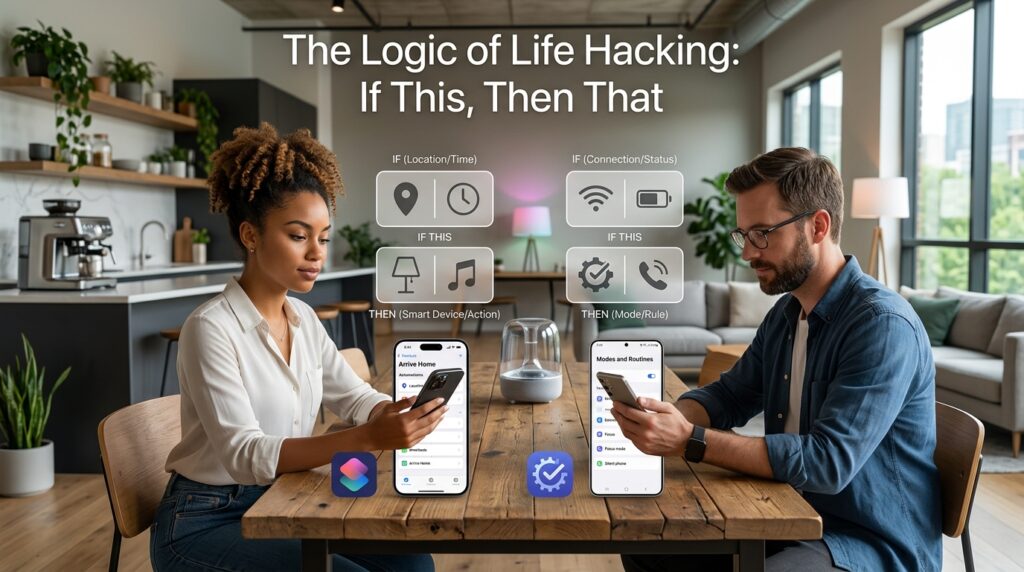
If you use an iPhone, the native engine is an app called Shortcuts. It comes pre-installed on every modern Apple device, but most people delete it or bury it in a folder because it looks complicated. If you open it and tap the “Automation” tab at the bottom, you have just entered the control center of your digital life.
If you use an Android device, specifically a Samsung, your built-in engine is called Modes and Routines (formerly Bixby Routines). You can find it directly in your main settings menu. If you are on a Google Pixel, you have access to Rules and Google Assistant Routines.
These engines operate on a beautifully simple logic: If This Happens, Then Do That. Once you understand this basic formula, the entire matrix opens up. You can link a specific trigger—like a time of day, a physical location, or a battery level—to a specific action. Discovering this logic was the catalyst for my entire digital overhaul, a journey I documented heavily in How I Automate Repetitive Tasks for Maximum Productivity.
2. The Commute Metamorphosis (Bluetooth Triggers)
Let’s start with the most common, repetitive part of the day: the commute.
Every morning, when you get into your car, your phone likely connects to the vehicle’s Bluetooth system. This connection is the perfect digital trigger. You can instruct your phone to perform an entire sequence of events the exact second that handshake happens.
I set up a native automation that completely eliminates my morning setup.
The Trigger: When my phone connects to my specific car’s Bluetooth network. The Action: The phone immediately sets the media volume to 75%, opens Google Maps to check the fastest route to my office, launches Spotify, and hits “Play” on my morning news podcast.
I literally just turn the key in the ignition, put the car in drive, and my phone handles the rest while sitting in my pocket.
I set up the exact inverse for the drive home. When I leave the office and start my car, the phone connects to the Bluetooth, automatically texts my partner “Heading home now, see you in 30!”, and starts playing my favorite music playlist. It removes all the dangerous, distracted tapping while I am trying to pull out of a parking lot.
3. Location-Based Behavior (The Grocery Store Hack)
Your phone’s GPS is constantly tracking your physical location. You can weaponize this data to make your phone change its personality depending on where you are standing.
For years, I had a terrible habit of building a meticulous grocery list on my phone while sitting on my couch, only to walk into the supermarket, get completely distracted by a sale on potato chips, and forget to even look at the list until I was already driving home.
I used my native automation engine to build a location fence.
The Trigger: When I physically arrive at the exact address of my local grocery store. The Action: My phone vibrates, wakes up the screen, and automatically opens my default notes app directly to my “Grocery List” note.
The moment I step through the sliding glass doors, the list is staring me in the face.
You can apply this geographical logic to anything. I have an automation set for my gym. When my GPS registers that I am in the gym parking lot, my phone automatically turns on “Do Not Disturb” mode so my workout isn’t interrupted by stressful work emails, and it launches my heavy lifting tracker. My physical environment dictates my software environment.
4. Deep System Triage (Battery Automations)
We all experience the mild, rising panic of watching our phone battery dip into the red zone when we are nowhere near a charger.
Historically, when my battery hit 20%, I would frantically start adjusting my system settings. I would manually drag the screen brightness all the way down, turn off Wi-Fi and Bluetooth, kill my background apps, and engage low-power mode. Doing this manually when you are already stressed about a dying phone is exhausting.
You can automate your phone’s survival instincts natively. This level of system control is exactly what I advocate for when discussing App Settings I Changed That Boosted My Phone’s Productivity. You should not have to manually manage your hardware.
I created a custom battery triage automation.
The Trigger: When my battery falls below 25%. The Action: The phone automatically turns on Low Power Mode, reduces the white point of the screen to make it incredibly dim, turns off cellular data for all non-essential apps (like Instagram and TikTok), and turns off the Always-On display.
I don’t have to touch a single button. The phone realizes it is bleeding energy and instantly applies a digital tourniquet to keep itself alive until I can find an outlet. Furthermore, you can set a reverse automation so that when you finally plug it in and it reaches 80%, it turns all those luxury features back on automatically.
5. Time-Triggered Focus Boundaries
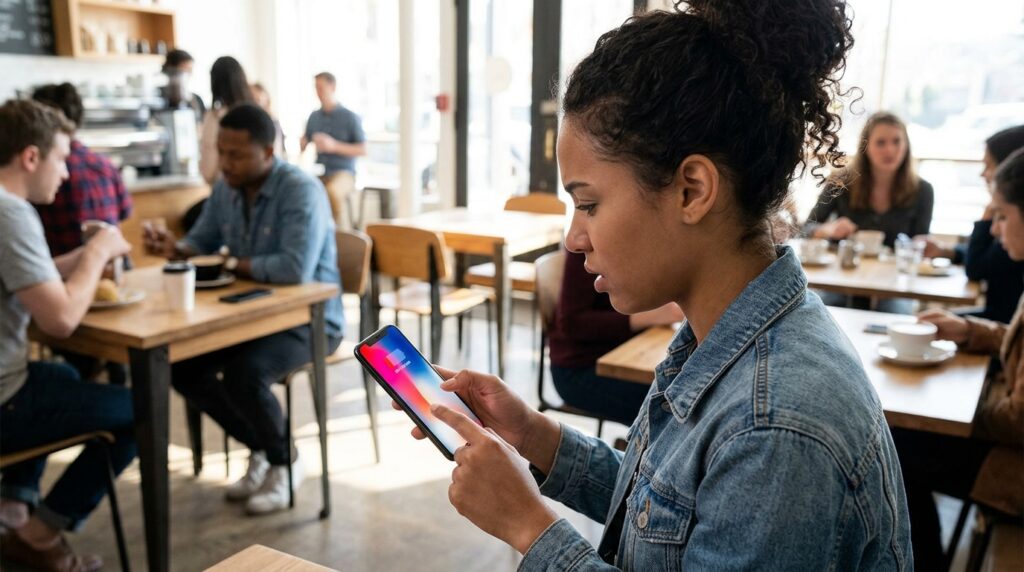
The most toxic aspect of modern smartphones is that they demand our attention equally at all times of the day. A marketing email at 9:00 PM looks exactly the same as an urgent text from your mother.
If you want to protect your peace, you have to teach your phone how to respect the clock.
Both Apple and Android have heavily invested in “Focus Modes” that go way beyond a simple mute button. You can natively automate entire home screen transformations based on the time of day.
I created a “Wind Down” automation.
The Trigger: When the clock strikes 9:30 PM. The Action: The phone automatically engages a specific Focus Mode. This mode hides my main home screen—taking away all the colorful icons for social media, email, and news apps. It replaces it with a completely blank, dark home screen that only features three apps: my alarm clock, my Kindle reading app, and a meditation app. It also silences all notifications except for emergency calls.
By automating this shift, I don’t have to rely on my own willpower to stop scrolling at night. The phone actively changes its interface to promote sleep, effectively locking me out of my own bad habits. When my 6:30 AM alarm goes off the next morning, the automation reverses, and my normal, colorful home screen returns.
6. Voice-Activated Chain Reactions
Sometimes, you don’t have a specific time or location to trigger a routine; you just want to execute a massive chain of events on command.
This is where the native voice assistants (Siri and Google Assistant) become your best friends. Most people only use them to set pasta timers or ask for the weather, but you can build custom phrases that trigger elaborate workflows.
Integrating voice commands was the final, critical step in upgrading my digital life, a strategy I detailed thoroughly in How I Turn My Phone Into a Personal Assistant.
I built a custom native routine for my morning preparation. When I am standing in the kitchen making coffee, my hands are busy. I simply speak to the room: “Hey Siri, start my morning briefing.”
Because I built the automation natively, the assistant doesn’t just give me a generic greeting. It executes a five-step script:
-
It reads out my first calendar appointment of the day.
-
It gives me a highly localized weather report so I know if I need an umbrella.
-
It estimates the current driving time to my office based on live traffic data.
-
It reads the top three headlines from a specific news outlet.
-
It resumes the audiobook I was listening to the day before.
I receive a complete, personalized data download while I am pouring milk into my mug, all triggered by a single, custom sentence.
7. Automating Communication with “Auto-Reply” and “Scheduling”
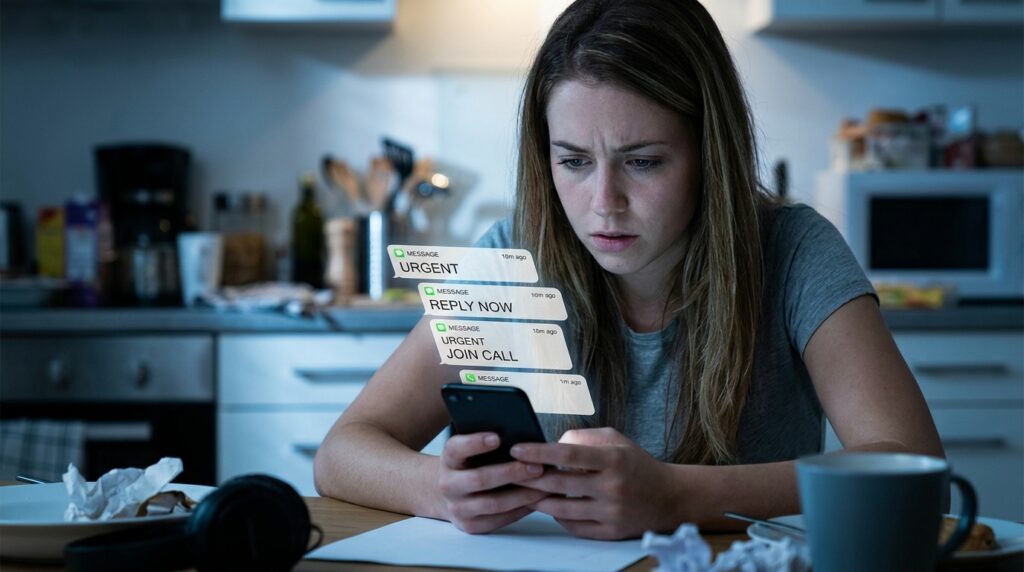
We feel an immense amount of social pressure to reply to text messages instantly. This pressure fractures our focus and keeps us tethered to our screens.
You can use the native tools on your device to automate your boundaries and manage other people’s expectations.
When I need to dive into two hours of deep, uninterrupted writing, I don’t just put my phone on silent. I use a native Focus automation that triggers an auto-reply. If any of my contacts text me during that two-hour block, my phone automatically texts them back: “Hey! I am currently doing some deep work and have notifications paused until noon. If this is an absolute emergency, call me twice.”
This completely removes the guilt of ignoring my inbox. My friends and colleagues know exactly why I am not responding, and the phone handles the communication for me.
Additionally, both Android and iOS now natively support scheduled text messages. If I remember at 11:00 PM that I need to ask my coworker a question, I don’t text them right then (which is rude and intrusive). But if I wait until the morning, I will forget. I type the message out, hold down the send button, and schedule it to automatically deliver at 8:30 AM the next day. The task is off my mind immediately, but the delivery is handled perfectly by the native software.
Final Thoughts: Reclaiming Your Cognitive Load
The human brain makes thousands of microscopic decisions every single day. We decide what to wear, what to eat, how to format an email, and which route to drive. Every single one of these decisions, no matter how small, burns a tiny fraction of your cognitive energy. By the time the evening rolls around, you are suffering from genuine decision fatigue.
Every time you have to decide to turn down your screen brightness, remember to text your partner, or manually load a driving route, you are wasting precious mental fuel on administrative garbage.
You paid hundreds, if not thousands, of dollars for a device engineered by some of the smartest software developers on the planet. Stop using it like a flip phone from 2005.
Take one hour this weekend to open the Shortcuts or Routines app natively built into your device. You don’t need a tutorial, you don’t need to learn Python, and you definitely don’t need to download another battery-draining third-party app. Just start with one simple rule. Tell your phone to open your music app when you get in the car.
The first time you watch your device flawlessly execute a sequence of chores entirely on its own, a profound sense of relief will wash over you. You will finally understand what it means to own a smart device, because you will have finally automated the busywork out of your life.
