
There was a specific Tuesday afternoon when I realized my workflow was completely broken.
I was standing in the middle of a grocery store aisle, holding a basket of vegetables in one hand, while trying to desperately update a massive project timeline on my smartphone with the other. My client had just texted me asking for an immediate status update on a deliverable.
Because I didn’t have a dedicated mobile app for my project management system at the time, I was trying to log into the desktop version of the software using my phone’s mobile web browser.
It was a complete nightmare.
I was pinching and zooming on a massive, complex spreadsheet that was clearly designed for a 27-inch monitor. I accidentally clicked the wrong cell, dragged a critical task into the wrong folder, and almost deleted an entire column of data. My heart rate spiked. By the time I finally typed out a clunky, misspelled response to the client, I was sweating, frustrated, and deeply annoyed.
I realized right then that “remote work” doesn’t just mean working from a home office. True remote work means having the ability to seamlessly manage your professional life from anywhere—whether that is a train, an airport, or a grocery store aisle.
If your project management system cannot be effortlessly operated with one thumb on a six-inch piece of glass, it is holding you back.
Most heavy-duty enterprise software fails miserably on mobile devices. They try to cram a hundred complicated features onto a tiny screen. But the best mobile project management apps do the exact opposite. They strip away the clutter, focus on intuitive gestures, and give you the exact information you need the moment you unlock your screen.
If you want to stop feeling chained to your laptop and start running your projects from your pocket, here are the apps that make project management incredibly simple on mobile.
1. The Tactile Power of Trello
When it comes to visual project management on a mobile device, Kanban boards are the undisputed kings, and Trello is the master of the mobile Kanban experience.
If you aren’t familiar with Kanban, it is a visual system where your tasks are represented by cards, and those cards are organized into vertical columns (typically “To Do,” “Doing,” and “Done”).
On a desktop computer, Trello is great. But on a mobile phone, Trello is absolute magic.
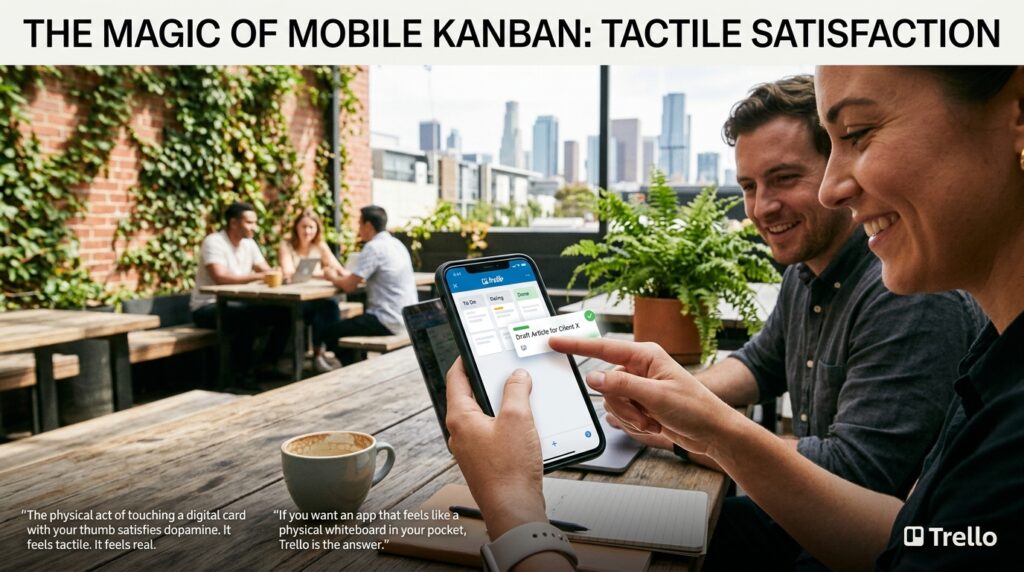
The physical act of touching a digital card with your thumb, holding it, and dragging it across your screen from the “Doing” column into the “Done” column provides an incredibly satisfying burst of dopamine. It feels tactile. It feels real.
When I am managing a content calendar for a client, I don’t want to dig through drop-down menus to change a status. I want to open the Trello app, see exactly where every single article is in the pipeline, and move things around with simple swipes.
Trello’s mobile app strips away all the complex, heavy data entry that bogs down other software. You tap a card, type a quick comment, attach a photo directly from your camera roll, and swipe out. Finding software that leans into the physical gestures of a smartphone was a massive turning point for me, a concept I elaborated on extensively in The Productivity App That Changed How I Work Every Day. If you want an app that feels like a physical whiteboard in your pocket, Trello is the answer.
2. Streamlining Team Chatter With Basecamp
One of the biggest problems with managing projects on the go is the chaotic fracturing of communication.
If you are managing a team of four people, you are likely receiving project updates via email, quick questions via WhatsApp, and file attachments via Slack. Trying to piece all of those notifications together on a mobile phone while you are walking down the street is exhausting.
I completely solved this problem by migrating team projects to Basecamp.
The brilliance of the Basecamp mobile app is its rigorous, almost aggressive commitment to compartmentalization. When you open a project in Basecamp on your phone, you are presented with a very clean, easy-to-read menu of six large buttons: Campfire (casual chat), Message Board (official announcements), To-Dos, Docs & Files, Schedule, and Automatic Check-ins.
It completely eliminates the “endless scrolling” problem.
If I need to see what my graphic designer said about a logo, I don’t have to scroll through a massive, chaotic Slack thread. I just tap the specific Message Board thread for that logo.
Furthermore, Basecamp has the best mobile notification settings in the industry. You can explicitly set your “Work Hours” in the mobile app. When 5:00 PM hits, the app simply stops sending push notifications to your phone. The work stays securely inside the app, waiting for you to open it the next morning, allowing you to actually enjoy your personal time without the constant buzzing.
3. Asana for Deadlines and Delegation
For projects that require strict, unforgiving timelines and heavy delegation, visual boards sometimes aren’t enough. You need lists, assignees, and due dates that hold people accountable.
For these types of highly structured workflows, the Asana mobile app is a powerhouse.
What makes Asana shine on mobile is its “My Tasks” view. When I am managing three different massive projects at once, the sheer volume of tasks can be overwhelming. But when I open Asana on my smartphone, I don’t look at the massive project overviews. I simply tap the “My Tasks” icon at the bottom of the screen.
The app instantly filters out all the noise and presents me with a clean, prioritized list of exactly what I need to do today.
If I am sitting in an Uber and realize that a client deadline has shifted, I can tap the task, reassign the due date, and tag a team member in a comment. The app instantly pings them. It is clean, fast, and highly responsive. Building this kind of centralized, actionable daily list is exactly how I manage the chaos, a strategy I detailed when writing How I Stay Organized While Managing Multiple Projects. Asana takes the heavy lifting of enterprise project management and distills it into a fast, mobile-friendly checklist.

4. The Quick Capture Magic of Todoist
Sometimes, you don’t need a heavy team collaboration tool. Sometimes, the “project” is just managing your own chaotic, fast-paced life, and you need a way to get tasks out of your head and into a system as quickly as possible.
The hardest part about mobile project management is the friction of data entry. Typing on a glass screen is inherently slower than typing on a physical keyboard.
This is why Todoist is an absolutely mandatory app on my phone.
Todoist utilizes incredibly advanced Natural Language Processing (NLP). This means you don’t have to navigate through five different menus to schedule a task.
If I am walking my dog and remember that I need to submit a project proposal on Friday, I just tap the big red plus button in Todoist and type: “Submit project proposal to Sarah on Friday at 9am #ClientWork”
The app’s algorithm instantly reads the text, automatically sets the due date for Friday, schedules a reminder for 9:00 AM, and files the task into the “ClientWork” project folder. It happens in the blink of an eye.
I use Todoist as my universal “inbox” for every stray thought and mini-project that crosses my mind when I am away from my desk. Relying on this frictionless capture method is the core philosophy I discussed in How I Organize My Tasks Using Only Mobile Apps. By lowering the barrier to entry, you ensure that no brilliant idea or critical task is ever forgotten just because you were away from your computer.
5. Building a Mobile Command Center in Notion
I would be remiss to talk about project management without mentioning Notion.
Notion is notoriously powerful. It is essentially a box of digital Legos that allows you to build completely custom relational databases, wikis, and project boards. However, out of the box, a complex Notion database looks terrible on a smartphone screen. The columns get squished, and navigating massive tables is a headache.
But I discovered a trick that turns Notion into the ultimate mobile command center.
Instead of trying to view my massive desktop databases on my phone, I built a specific “Mobile Dashboard” page inside Notion.
I created a clean, minimalist page filled only with “Linked Views” of my main databases. I set the filters on this mobile page so that it only shows me tasks that are marked “High Priority” and are due “Today.” I also formatted these views to display as simple lists rather than complex tables.
Now, when I open Notion on my phone, I don’t see the massive, overwhelming architecture of my entire business. I just see a perfectly formatted, mobile-optimized list of urgent priorities. I can quickly reference a client’s brand colors, check a meeting note, or tick off a priority task, all without fighting the interface. If you are willing to spend twenty minutes setting up a mobile-specific view, Notion becomes an unstoppable force in your pocket.
6. Bridging the Gap With Slack Automations
Finally, a massive part of project management isn’t just checking off tasks; it is communicating the status of those tasks.
If I finish a draft of a document while sitting at a cafe, I don’t want to have to open my project management app, mark it as done, and then open my email app to tell the client it is done, and then open my messaging app to tell my team it is done. That is entirely too much mobile friction.
I use Slack on my mobile device, but I use it as an automated hub.
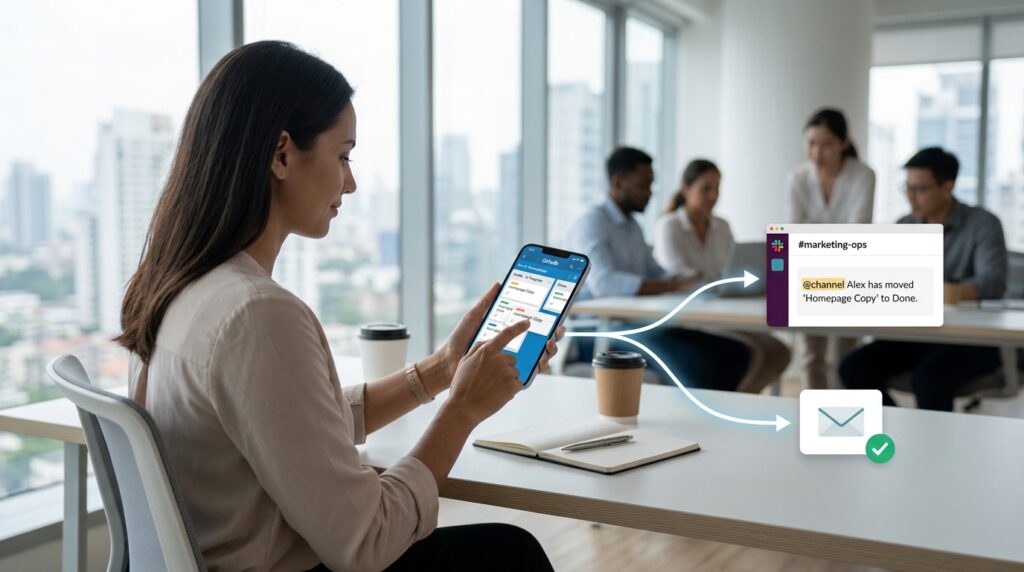
Almost every major project management app (including Trello, Asana, and Basecamp) integrates seamlessly with Slack. I set up simple automations so that when I swipe a card to “Done” in Trello on my phone, the software automatically sends a pre-formatted message into a specific Slack channel.
“Alex has moved ‘Homepage Copy’ to Done.”
The team is instantly updated, and I didn’t have to type a single extra word. By letting the apps talk to each other in the background, my mobile device becomes a remote control for my entire business infrastructure. I press one button, and the system updates everyone else automatically.
Final Thoughts: Redefining “The Office”
We have been culturally conditioned to believe that “real work” can only happen when you are sitting in a rigid ergonomic chair, staring at a massive glowing monitor, and clicking a physical mouse. We view our smartphones as toys, meant only for consuming entertainment and sending emojis.
But the reality of the modern economy is wildly different.
The processing power inside your smartphone is staggering, but it is completely useless if you pair it with clunky, frustrating, unoptimized software.
You do not have to be chained to your desk to be a highly effective professional. You just need to curate your digital toolbelt.
Take a few hours this week to evaluate how you manage your projects. If the app you are currently using makes you want to throw your phone across the room every time you try to change a due date, delete it.
Switch to a mobile-first Kanban board like Trello, streamline your team chatter with Basecamp, or set up a frictionless capture system with Todoist. When you finally find the software that respects the physical limitations and the tactile nature of a smartphone screen, a profound sense of freedom unlocks.
You stop panicking when you get an urgent message in the grocery store aisle. You just calmly unlock your screen, swipe a card, and get back to living your life.
