
It was 6:00 PM on a gloomy Friday evening, and I was sitting in my car in the parking lot of my office building. Before putting the car in drive, I sat in the driver’s seat and performed the exact same digital dance I had performed every single weekday for over three years.
First, I unlocked my phone and opened Google Maps to type in my home address and check the traffic on the highway.
Second, I opened my messaging app to text my partner: “Leaving the office now, ETA is about 45 minutes.”
Third, I opened Spotify, navigated to my specific “Commute Wind Down” playlist, and hit shuffle.
Finally, I pulled down the quick settings menu and turned off my Wi-Fi, because otherwise, my phone would constantly try to connect to the random routers of passing city buses during my drive.
This entire routine took maybe two or three minutes. But as I sat there tapping the glass screen, a depressing mathematical realization hit me. Two minutes a day, five days a week, fifty weeks a year. I was spending over eight hours a year just pressing the exact same buttons, in the exact same sequence, just to drive home.
I was carrying a technological marvel in my pocket—a supercomputer with more raw processing power than the machines that originally put humanity on the moon—and I was operating it like a manual typewriter.
I was doing the heavy lifting for my software, instead of making the software do the heavy lifting for me.
That Friday evening in the parking lot sparked a complete overhaul of how I use technology. I stopped viewing my smartphone as a screen I had to manually dictate commands to, and started treating it like a highly capable employee. If a digital task is predictable, repeatable, and boring, a human being should not be doing it.
If you are tired of losing hours of your week to digital busywork, copy-pasting text, and toggling settings, here is exactly how I automate repetitive tasks for maximum productivity, completely transforming my relationship with my devices.
1. Embracing the “If This, Then That” Philosophy
The core foundation of all digital automation comes down to a very simple logic statement: If [Trigger] happens, then perform [Action].
Before I downloaded any complex third-party software, I started looking at the native automation tools already built into my phone’s operating system (like Apple Shortcuts on iOS or Bixby Routines/Modes on Android). Most people completely ignore these native apps, assuming they require advanced coding knowledge.
They don’t. They are essentially digital Lego blocks.
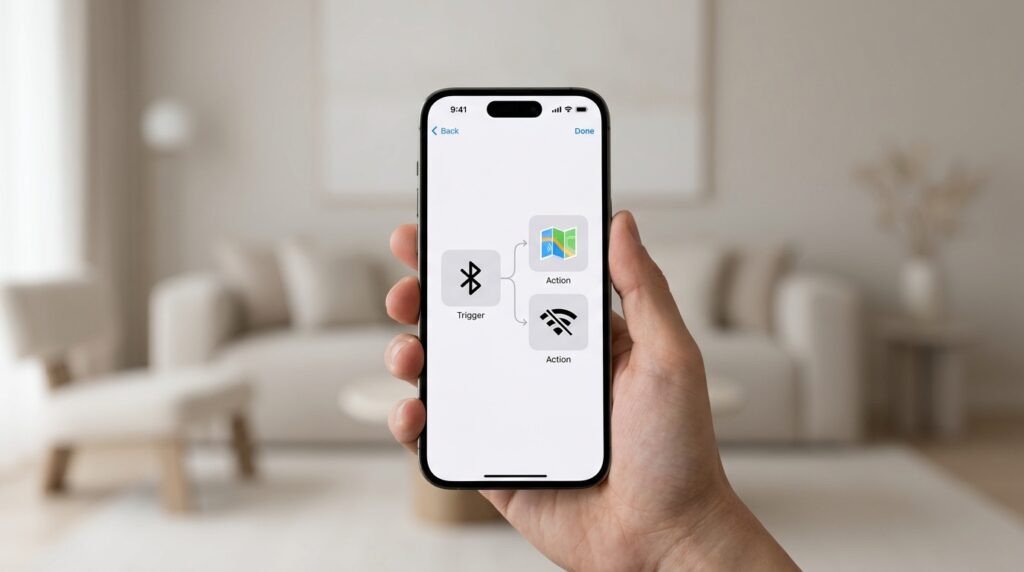
I started by fixing my annoying commute problem. I opened my phone’s native automation app and built my very first “Routine.”
I set the Trigger to: When my phone connects to my car’s Bluetooth. I set the Actions to:
-
Turn off Wi-Fi.
-
Open Google Maps and route to Home.
-
Send a text message to my partner saying “Heading home!”
-
Set media volume to 80% and play Spotify.
The next Monday, I got into my car and turned the key. The Bluetooth connected. Without me touching a single button, my phone’s screen lit up, the map loaded my route, the text message was sent invisibly in the background, and my favorite podcast started playing through the speakers.
It felt like magic. I had just bought back eight hours of my life with five minutes of setup. I realized that relying on built-in features completely changed my workflow, a concept I broke down when I wrote about Tricks to Automate Your Phone Without Installing New Apps. You don’t need a degree in computer science; you just need to identify your daily triggers.
2. Location-Based and Geofenced Automations
Once I realized my phone could react to Bluetooth, I started wondering what else it could react to. Your smartphone is packed with advanced sensors, and the GPS is arguably the most powerful trigger you have at your disposal.
I began using “Geofencing” to automate my physical transitions throughout the day.
For example, whenever I used to walk into my local gym, I had to stop in the lobby to manually pull up my gym membership barcode, open my workout tracking app, and turn my phone onto “Do Not Disturb” so clients wouldn’t call me while I was lifting weights.
I automated the entire sequence. Now, using a location-based trigger, the exact second my phone’s GPS registers that I have entered the physical perimeter of the gym, my phone goes into a custom “Fitness Focus” mode. The screen brightness dims, all notifications are muted, and my gym membership barcode automatically pops up on my lock screen.
Similarly, when my GPS registers that I have left the physical address of my office, it automatically mutes my Slack notifications and work email. I don’t have to consciously “clock out” anymore; my phone clocks out for me based on my geographic coordinates. The device in your pocket should act like a dedicated employee, an evolution I explored heavily in How I Turn My Phone Into a Personal Assistant.
3. Text Expansion for Infinite Typing Speed
A massive portion of our digital lives is spent typing the exact same sentences over and over again.
If you are a freelancer, you probably type out your pricing structure, your onboarding instructions, and your portfolio links three times a week. If you work in customer service, you type the same apologies and shipping updates hundreds of times.
Typing out repetitive information on a tiny glass keyboard is the ultimate productivity killer.
I solved this by deeply utilizing Text Replacement (also known as Text Expansion). Both iOS and Android have this feature buried in their keyboard settings, though dedicated apps like TextExpander offer even more power.
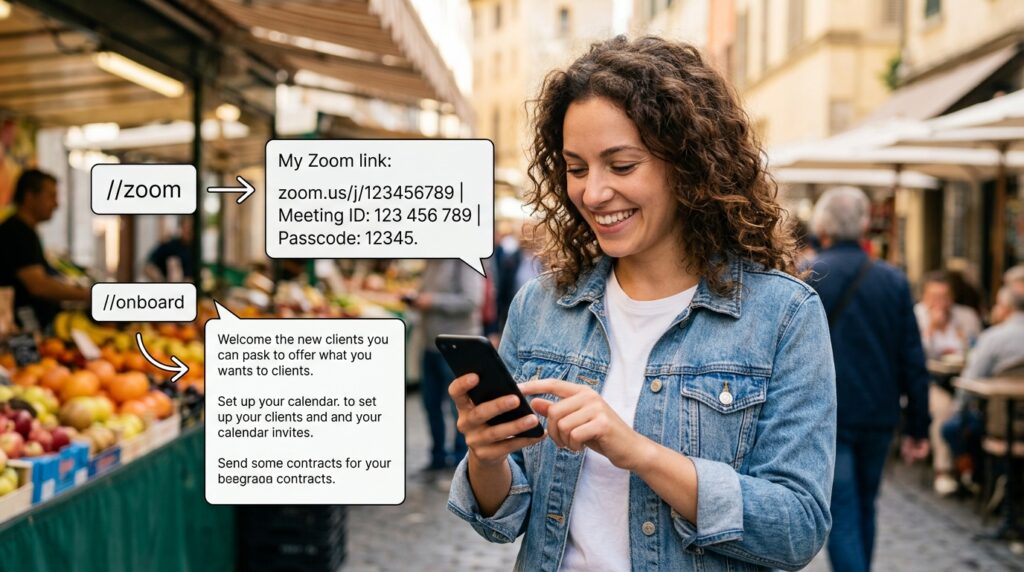
I created a library of short text triggers that instantly expand into massive paragraphs.
-
If I type
//zoom, my phone instantly replaces that text with my full, permanent Zoom meeting link, meeting ID, and passcode. -
If I type
//address, it populates my full home mailing address. -
If I type
//onboard, it instantly generates a beautifully formatted, three-paragraph welcome email for new clients, complete with links to my calendar and contract folder.
I never type the same sentence twice. By outsourcing my repetitive communication to keyboard shortcuts, I can clear out an inbox full of client inquiries while standing in line at a grocery store, doing in thirty seconds what used to take me fifteen minutes of furious thumb-typing.
4. App-to-App Pipelines (Zapier and Make)
Native automations are fantastic for controlling your phone’s hardware, but what happens when you need to automate your actual work? What happens when you need different software applications to talk to each other?
This is where third-party integrators like Zapier or Make (formerly Integromat) come into play. These tools act as digital bridges between apps that otherwise wouldn’t communicate.
Before I automated my workflow, dealing with client attachments was a nightmare. A client would email me a massive ZIP file of photos. I would have to open the email on my phone, download the file to my local storage, open my Google Drive app, create a new folder with the client’s name, and manually upload the ZIP file.
I built a “Zap” to eliminate this entirely.
Now, the logic runs seamlessly in the cloud: IF I label an email in Gmail with the tag “Client Assets,” THEN Zapier automatically extracts any attachments in that email and saves them into a specific, pre-formatted folder in my Google Drive.
I don’t touch the files. I just swipe the email to apply a label, and the robotic pipeline handles the heavy lifting. I built similar pipelines for my finances: if a payment clears in my Stripe account, a tool automatically logs the amount into a Google Sheet and sends me a celebratory notification on Slack.
5. Automating the Morning Bookend
How you start your morning dictates the momentum for the rest of your day. If your first action is frantically clicking through five different apps to check the weather, your calendar, and your bank balance, you are starting your day in a state of chaotic reaction.
I wanted my morning data delivered to me on a silver platter.
Using my phone’s automation tools, I linked my morning alarm to an intricate data sequence. When I dismiss my 6:30 AM alarm, the software registers that I am awake.
Instantly, my phone takes my smart home off “Night Mode.” The screen brightness slowly increases. More importantly, it triggers a custom visual dashboard. A widget pops up showing me the exact weather forecast for my specific zip code, followed by a bulleted list of my calendar appointments for the day, and finally, a quick summary of any urgent emails flagged by my VIP contacts overnight.
I don’t have to go digging for information; the information is pushed to me the moment my feet touch the floor. By setting these triggers the night before, waking up becomes a seamless experience, which is the cornerstone of How I Built a Productive Daily Routine Using Apps.
6. The “Read It Later” Automation
One of the biggest productivity traps on a mobile device is the fascinating article.
You will be in the middle of a focused workday, researching a specific topic for your boss, and you will stumble across an incredible, 4,000-word essay about the history of architecture. It has nothing to do with your job, but you really want to read it.
If you stop working to read it, you derail your productivity. If you leave the tab open, it clutters your browser and gives you anxiety.
I automated this dilemma away using an app called Instapaper (or Pocket) combined with my phone’s share sheet.
Now, when I find an amazing article during work hours, I don’t read it. I simply tap the “Share” button and select my automated “Read Later” shortcut. The software instantly scrapes the pure text of the article, strips away all the annoying ads and pop-ups, and saves it into a beautifully formatted digital magazine in my Instapaper account. The browser tab automatically closes.
On Sunday mornings, I open my tablet, and I have a perfectly curated, distraction-free reading list waiting for me. I captured the value of the internet without sacrificing my workday focus.

Final Thoughts: From Laborer to Architect
We often romanticize “hustle culture” and the act of working hard. We wear our busyness as a badge of honor. But clicking the same buttons, downloading the same files, and typing the same emails every single day is not hard work; it is manual labor in a digital age.
Your time is the most valuable, finite resource you will ever possess. It should be spent doing high-level creative thinking, solving complex problems, and connecting with the people you love. It should not be spent acting as a human bridge between two pieces of software.
Automating your repetitive tasks requires an upfront investment of your time. It might take you thirty minutes on a Sunday afternoon to build out your text replacement snippets, set up your geofencing triggers, and link your email to your cloud storage via Zapier.
But once those systems are built, they run flawlessly, silently, and eternally in the background.
You stop being the laborer of your digital life, frantically swinging a hammer to keep everything together. You finally step back, put down the hammer, and become the architect. When you automate the mundane, you clear the runway for the extraordinary.
