
For the better part of a decade, I treated Google Maps like a basic, unthinking digital compass.
Whenever I needed to go somewhere new, I would type the address into the search bar, blindly hit the blue “Start” button, and immediately turn my brain off. I let the robotic voice tell me when to turn left and when to turn right. If I was searching for a place to eat, I would type the word “coffee” or “pizza” and just scroll through an endless, overwhelming list of red pins until I randomly picked one.
I assumed that was all the app did. It was a digital map. It replaced the folding paper maps our parents used to keep in the glove compartment, and that was good enough for me.
But recently, during a particularly chaotic trip to an unfamiliar city, I was sitting in the passenger seat watching a friend navigate. She wasn’t just following a blue line on a flat screen. She was pulling up three-dimensional environments, asking the map complex conversational questions, and navigating inside a massive airport terminal using her phone’s camera.
I sat there, staring at her screen in absolute disbelief.
It turns out, while I had been using Google Maps as a basic A-to-B router, the developers at Google had been quietly turning it into an immensely powerful, AI-driven super-tool. The app had evolved entirely, packed with hidden layers, augmented reality features, and predictive algorithms that I was completely ignoring.
I spent the next few weeks diving deep into the settings menus, update logs, and hidden gestures. Discovering these features felt like unlocking a secret level in a video game, an experience that reminded me heavily of the process I wrote about in Simple App Shortcuts That Save Me Hours Every Week. If you rely on this app every single day to navigate the world, you are likely leaving its best features untouched.
Here are the most mind-blowing, hidden Google Maps features I discovered after years of use, and how they will completely change the way you travel.
1. The Conversational AI Upgrade: “Ask Maps”
This is perhaps the most massive shift in how the platform operates. We are conditioned to search Maps using rigid, clunky keywords like “Italian restaurant open now.”
With the recent integration of Gemini AI models into the app, Google introduced a feature called Ask Maps. You no longer have to search with keywords; you can talk to the map like it is a local concierge who knows the neighborhood perfectly.
Instead of searching for a coffee shop and hoping it has what I need, I can now type a highly specific, complex, natural-language question into the search bar.
I can type: “My phone battery is dying. Where can I go right now to charge it and sit down without having to wait in a massive line?”
The app doesn’t just show me nearby cafes; it cross-references real-time busyness data, user reviews that mention “outlets” or “charging,” and current opening hours to give me a curated, AI-generated answer.
You can ask it things like, “What are the best interactive date night spots in this neighborhood that have vegan options and parking?” It completely eliminates the need to cross-reference Yelp reviews, restaurant websites, and parking maps. The map does all the heavy analytical lifting for you.

2. Eliminating the “GPS Spin” with AR Live View
We have all experienced this incredibly frustrating modern phenomenon: You walk out of an underground subway station, pull up Google Maps, and look at the little blue dot. The dot has a shaded cone pointing in the direction you are facing.
But the compass is confused. As you turn around, the cone spins wildly. You end up walking a full city block in the wrong direction before the map finally recalibrates and tells you to turn around.
You can completely eliminate the “GPS spin” by using Live View.
When you start walking directions, look for the little camera icon on your screen (or a button that says “Live View”). When you tap it, the app opens your smartphone camera. You simply hold your phone up and point it at the buildings and street signs around you.
The app scans the physical architecture of the street, instantly recognizes exactly where you are standing, and projects massive, augmented reality (AR) arrows directly onto your camera feed. You literally see a giant, floating digital arrow pointing down the physical street you need to walk down. It orientates you in two seconds flat.
3. The Secret to Navigating Airports and Malls
For years, my biggest complaint about digital maps was that they became completely useless the moment you walked through the front doors of a massive building. They could get me to the airport, but they couldn’t help me find my gate or the nearest restroom.
I had no idea that Google Maps has mapped the insides of tens of thousands of buildings worldwide.
If you are at a major airport, a large shopping mall, or a massive transit hub, zoom in on the building on your map. You will suddenly see a directory pop up. More importantly, you will see a little floor selector button on the left side of your screen (usually labeled L1, L2, L3, etc.).
You can tap the floor you are on, search for a specific store or gate, and the app will give you indoor walking directions. The AR Live View I mentioned above even works inside many of these major hubs. Getting lost while frantically looking for a coffee shop during a layover is a thing of the past. Mastering indoor navigation pairs perfectly with the broader digital strategies I rely on when traveling, a mindset I explored thoroughly in 11 Travel Planning Apps That Save Hours of Work.
4. The Luggage and Stroller Routing Hack
This is a hidden feature that feels like an absolute lifesaver if you are traveling with heavy suitcases, pushing a baby stroller, or managing a physical mobility issue.
When you ask Google Maps for public transit or walking directions, it assumes you are perfectly capable of sprinting up four flights of concrete stairs in a subway terminal. In cities with older infrastructure, like London, Paris, or New York, the default route might lead you to an exit that consists entirely of steep, exhausting staircases.
You can change this default behavior.
When you enter your destination and select transit directions, tap the three dots in the top right corner and select Options (or Route Options). Scroll down and check the box that says Wheelchair Accessible.
The app will instantly recalculate your entire journey. It will reroute you to subway stations that have working elevators, direct you toward street-level bus routes, and prioritize ramps over stairs. I started using this feature whenever I travel with a heavy rolling suitcase, and it has saved me from pulling a muscle on an escalator more times than I can count.
5. Immersive 3D Navigation for Complex Intersections
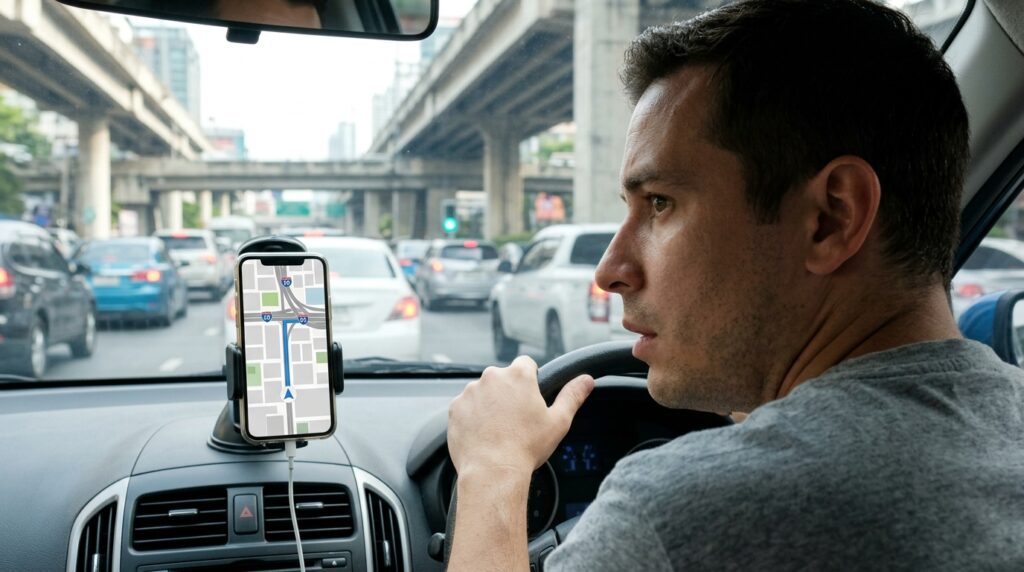
If you have ever driven in a dense urban downtown, you know that a flat, 2D map is sometimes useless when you are surrounded by skyscrapers, underpasses, and multi-lane expressways. You stare at the screen, but you can’t figure out if you are supposed to be on the upper deck or the lower deck of the bridge.
Google’s recent Immersive Navigation update completely redesigns the driving experience for these stressful moments.
When you are driving through complex areas, the map now transforms into a vivid, 3D environment. But it isn’t just visually pretty; it is highly functional. If a road curves behind a massive building, the app actually makes the building translucent so you can clearly see the geometry of the road ahead.
Furthermore, the app explicitly highlights the exact lane you need to be in, illuminates crosswalks, and shows traffic lights directly on the 3D map. It takes the terrifying ambiguity out of merging on a chaotic six-lane highway because the digital screen perfectly mirrors the three-dimensional depth of your windshield.
6. Ending the Group Chat Nightmare: Collaborative Lists
Planning a group dinner or a weekend trip with friends used to involve a chaotic, stressful group text. Someone would send a link to a restaurant, someone else would suggest a different bar, the links would get lost in the chat history, and no one could ever agree on a final destination.
Google Maps solves this beautifully with Collaborative Lists.
Instead of texting links, you can create a new list inside the Maps app (e.g., “Austin Weekend Trip”) and hit the “Share” button to invite your friends as collaborators.
Everyone in the group can search the map and save their favorite bars, museums, and taco stands directly to this shared list. Once the locations are saved, the map becomes a visual itinerary.
Even better, the app recently introduced emoji voting. Your friends can look at the list of saved restaurants and react with a “thumbs up” or a “heart” emoji next to the places they want to visit the most. It turns trip planning into a democratic, highly visual process. This collaborative function completely eradicated my travel anxiety, solving a major logistical nightmare that I previously tackled in How a Travel App Helped Me Plan My Last Trip in Hours.
7. Glanceable Directions on Your Lock Screen
When you are walking through a crowded city using Maps, keeping your phone unlocked and staring at the screen drains your battery and makes you an easy target for pickpockets. But if you lock your phone and put it in your pocket, you might miss your turn.
You have to actively enable Glanceable Directions.
If you go to your profile picture > Settings > Navigation, you will find a toggle for “Glanceable Directions While Navigating.”
Once this is turned on, you can start your walking route, lock your phone screen, and slide it into your pocket. You don’t have to unlock the phone to see where you are going. Your ETA, your current location, and your next upcoming turn will constantly update directly on your dark lock screen (using Live Activities on iOS or system notifications on Android). It allows you to navigate the city with quick, subtle glances rather than walking around like a distracted tourist staring at a bright screen.
8. Arrival Guidance and Finding Your Parked Car
The navigation experience used to end abruptly the moment the robotic voice announced, “You have arrived.”
The problem is, “arriving” at a massive apartment complex or a sprawling shopping center isn’t actually the end of the journey. You still have to figure out where the main entrance is, figure out where to park, and then remember where you left your car.
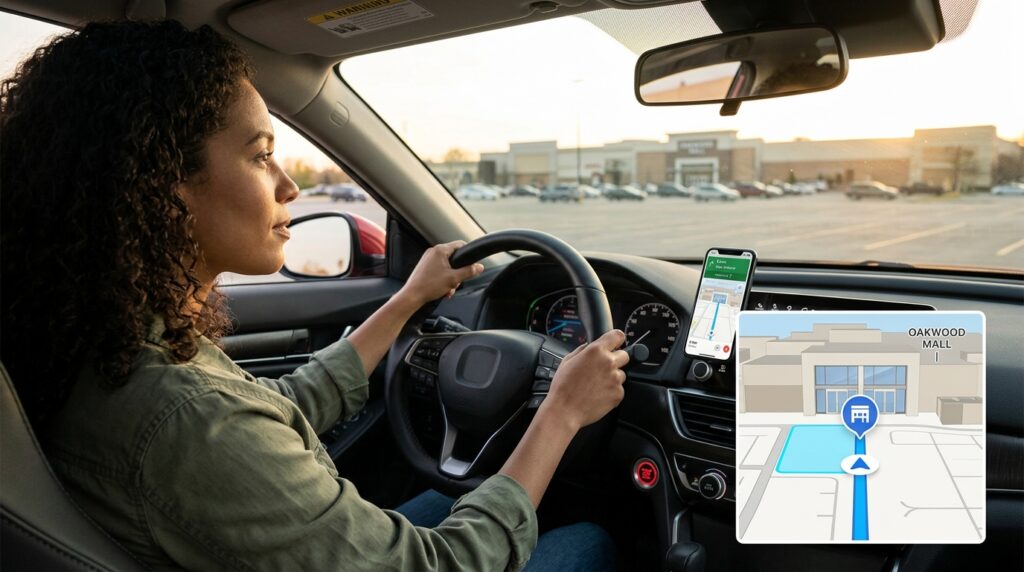
The new Arrival Guidance feature handles the last five hundred feet of your journey.
As you approach your destination, the map will specifically highlight the actual front doors of the building you are trying to enter. It will automatically suggest nearby parking lots or garages.
Once you put your car in park and exit the vehicle, the app will ping you, asking if you want to save your parking spot. It drops a tiny “P” pin on the map. Later that evening, when you walk out of the restaurant and have absolutely no idea where you parked, you just tap the “P” icon, and the app gives you augmented reality walking directions straight back to your driver’s side door.
Final Thoughts: Stop Settling for the Default
We rely on our smartphones to navigate almost every aspect of our modern lives, but we rarely take the time to read the manual.
When you treat Google Maps like a simple digital replacement for a paper map, you are leaving an astonishing amount of power on the table. The developers have spent billions of dollars building an artificially intelligent, augmented reality engine that understands the physical world better than any human ever could.
Take ten minutes before your next road trip or your next commute to dig into these settings. Turn on the Glanceable Directions. Build a collaborative list for your next family outing. The next time you walk out of a confusing subway station, don’t spin around in circles trying to read the compass—just hold your camera up and let the arrows guide you.
When you unlock the hidden architecture of the apps you use every day, you completely remove the friction from your physical environment. The world stops feeling chaotic and confusing, and starts feeling like it was mapped entirely for your convenience.
