
I remember standing at the top of Sugarloaf Mountain here in Rio de Janeiro, waiting for the exact moment the sun would dip behind the jagged peaks. The sky was an absolute explosion of colors—deep violet, fiery orange, and a soft, bruised pink. I pulled out my smartphone, lined up the perfect composition, and tapped the shutter button.
When I looked at the screen, my heart sank.
The photo was flat. The shadows were completely crushed into pure black, the sky looked washed out, and the vibrant colors I was seeing with my naked eye were nowhere to be found in the digital file. For a long time, I blamed the camera on my phone. I assumed that unless I carried a heavy, expensive DSLR camera with me everywhere I went, my memories were destined to look dull.
I couldn’t have been more wrong.
The sensor on your smartphone is an absolute marvel of modern engineering. It captures a staggering amount of light and data. The reason your photos look flat right out of the camera isn’t a hardware failure; it’s a software limitation. Native camera apps are designed to take safe, neutral, middle-of-the-road photos.
To unlock the actual magic hidden inside those pixels, you have to step into the digital darkroom. You have to edit.
Over the past few years, I have ruthlessly tested, bought, and deleted dozens of mobile editing tools. My phone’s storage is precious, so an app has to truly earn its place on my home screen. After endless trial and error, I have curated a specific folder of tools that handle everything from color grading to removing unwanted tourists.
If you are tired of your photos looking like ordinary snapshots, here are the 10 photo editing apps I absolutely refuse to delete.
1. Adobe Lightroom Mobile: The Heavyweight Champion
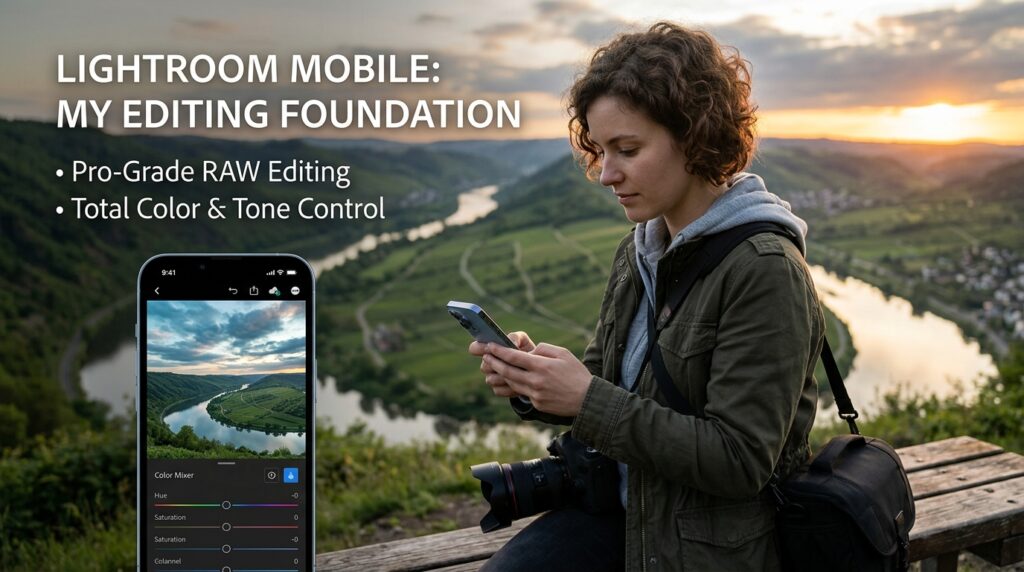
If I were forced to delete every single photography app on my phone except for one, Lightroom Mobile is the one I would keep. It is the absolute foundation of my entire visual workflow.
Lightroom isn’t just a filter app; it is a professional-grade color grading suite scaled down for a touchscreen. Its true power lies in its ability to process RAW image files. When I shoot a RAW photo, my camera saves every single detail from the brightest highlight to the darkest shadow.
When I pull that file into Lightroom, I have total control. I can use the “Color Mix” tool to take the specific shade of blue in the sky and make it slightly more teal, without affecting the blue in someone’s jacket. I can pull detail out of completely dark shadows without degrading the image quality.
Learning the mechanics of the tone curve and color mixing takes a little bit of practice, which is why I often share strategies on (How to Edit Photos Like a Pro on Your Phone). Once you master Lightroom, you will never look at mobile photography the same way again.
2. Snapseed: The Swipe-to-Edit Master
Snapseed, owned by Google, is the best free photo editor ever created. Period.
While Lightroom is my go-to for heavy color grading, Snapseed is the app I open when I need to make incredibly precise, localized adjustments. The interface relies on an intuitive swipe-based gesture system that makes editing feel incredibly tactile.
My favorite feature is the “Selective” tool. Let’s say I take a portrait of a friend, but their face is slightly in the shadow. In a normal app, if I increase the brightness, the entire photo gets brighter, ruining the background. In Snapseed, I can drop a selective point directly on my friend’s face, swipe my thumb to the right, and instantly brighten only their face, leaving the rest of the image perfectly intact.
It also boasts an incredible “Healing” tool for quickly brushing away minor blemishes or dust spots on the lens.
3. VSCO: The Aesthetic Film Emulator
There is a big difference between applying a cheap filter and applying a film emulation. VSCO built its entire empire on the latter.
When I want a photo to feel nostalgic, moody, or distinctly analog, VSCO is where I go. Their presets are meticulously crafted to emulate the exact chemical properties of classic film stocks from Kodak, Fuji, and Agfa.
But I never just slap a preset on a photo at 100% intensity and call it a day. The trick with VSCO is subtlety. I will apply a Kodak Portra 400 preset, but dial the strength down to about 40%. It adds a beautiful, soft warmth to the skin tones and a slight, cinematic fade to the shadows without making the image look over-processed. It provides that coveted “indie magazine” aesthetic with just a few taps.
4. TouchRetouch: The Clutter Remover
Let me set a familiar scene: You wait twenty minutes to get the perfect photo in front of a famous monument. You finally take the shot. Later, you realize there is a bright orange traffic cone in the corner of the frame, and a random stranger is walking through the background, totally ruining the composition.
Enter TouchRetouch.
This app does one thing, and it does it better than any desktop software I have ever used. It removes unwanted objects. You simply use your finger to paint over the traffic cone or the photobomber. The moment you lift your finger, the app’s algorithm analyzes the surrounding pixels and seamlessly fills in the blank space.
It is practically magic. I use it constantly to remove stray power lines from cityscapes, trash cans from street photos, and blemishes from portraits. Discovering tools like this completely alters what you think is possible, a concept I explored deeply in my piece about (Hidden Editing Features in Photo Apps That Improve Photos Instantly). It saves photos that would otherwise go straight to the trash bin.
5. Darkroom: The Seamless iOS Integrator
I use Darkroom primarily for its absolute lack of friction.
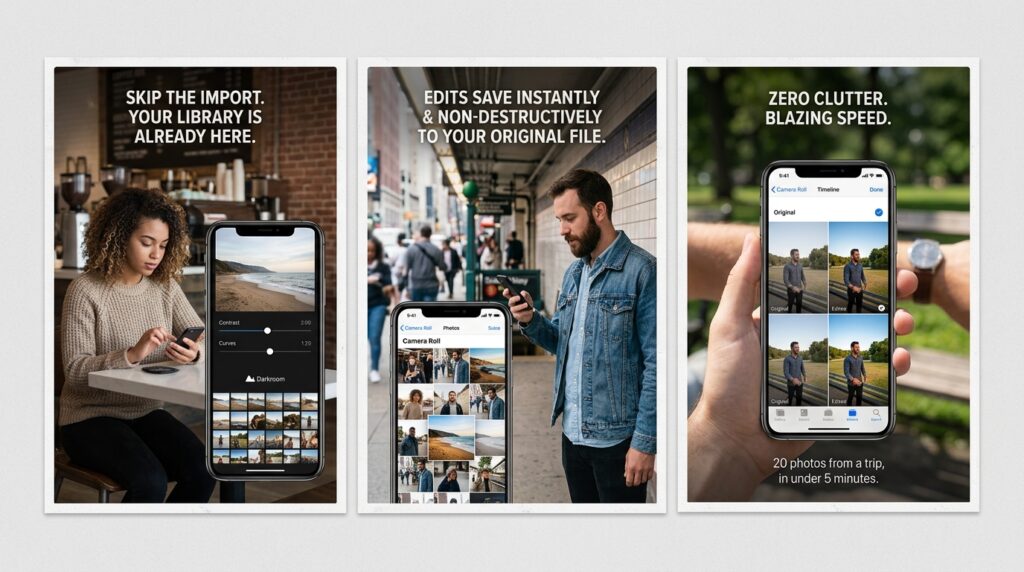
Most heavy-duty editing apps require you to manually import a photo into their ecosystem, edit it, and then export it back out to your camera roll. This creates annoying duplicate files and clutters up your storage.
Darkroom skips that entire process. It hooks directly into your native camera roll. When I open Darkroom, my entire photo library is already there. I tap a photo, adjust the contrast and the curves, and close the app. The edits are saved non-destructively right to the original file in my photo gallery.
It is blazingly fast, incredibly well-designed, and perfect for when I need to batch-edit twenty photos from a weekend trip in under five minutes.
6. Afterlight: The Vintage Texture King
Sometimes, a digital photo just looks too perfect. The edges are too sharp, the colors are too clean, and the image lacks a soul.
When I want to rough an image up and give it some character, I open Afterlight. This app specializes in highly realistic vintage textures. It has an extensive library of authentic light leaks—the red and orange flares that used to happen when a physical roll of film was accidentally exposed to sunlight.
It also features an incredible tool for adding film dust and grain. I will often take a beautifully clean portrait I edited in Lightroom, bring it into Afterlight, and add a subtle layer of black-and-white dust to the surface. It gives the image a tactile, printable quality that makes people stop scrolling and actually look at the photo.
7. Lens Distortions: The Cinematic Enhancer
Have you ever taken a photo on a foggy morning, only to find that the fog looks thin and unimpressive on camera?
Lens Distortions is my secret weapon for atmospheric enhancement. It uses actual, optically captured elements—not computer-generated graphics—to add depth to a photo. You can layer incredibly realistic fog, rain, snow, or shimmering glass flares over your images.
If I take a photo in a forest where the sunlight is trying to peek through the trees, I will use Lens Distortions to add a soft, volumetric sun flare right at the light source. It instantly elevates the drama of the photo, turning a flat nature shot into a cinematic frame that looks like it was pulled from a movie.
8. SKRWT: The Geometry Fixer
This is the most technical app on my list, but it is absolutely vital if you shoot architecture or city streets.
Smartphone camera lenses are naturally very wide. Because of this, if you stand at the bottom of a tall building and take a picture looking up, the lines of the building will converge. It looks like the building is falling backward away from you. This is called perspective distortion.
SKRWT is a dedicated lens correction tool. With a few simple swipes, you can correct the vertical and horizontal lines of a photo, straightening out buildings and fixing crooked horizons with pinpoint accuracy. It is a minor tweak that separates amateur snapshots from professional, architecturally sound photography.
9. Canva: The Design Bridge
While Canva isn’t a traditional photo editor, it is an essential part of my visual workflow for sharing my images.
Once my photo is perfectly color-graded and cleaned up, I often want to present it in a specific way on social media or in my blog. Canva allows me to take my finished photos and place them into beautiful, minimalist templates.
I use it to create white borders around my images for a clean Instagram grid, or to add elegant, typographical titles over a landscape shot to create a cover image for an article. It bridges the gap between pure photography and graphic design, allowing me to package my art professionally before presenting it to the world.
10. Google Photos: The Cloud Archiver and Quick Fixer
Finally, editing is completely pointless if you lose the files.
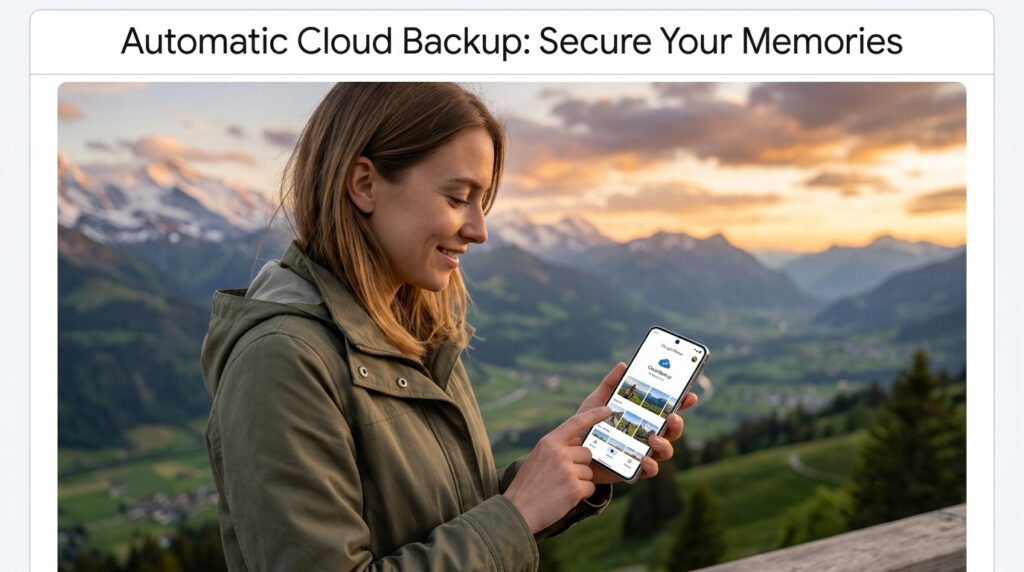
Google Photos is my ultimate safety net. The moment my phone connects to Wi-Fi, it automatically backs up every single RAW file and edited JPEG to the cloud. I never have to worry about dropping my phone in the ocean and losing a year’s worth of memories. Securing your digital assets is a non-negotiable habit, which I heavily stressed in my breakdown of (12 Photo Storage Apps That Keep My Memories Safe).
But beyond storage, the editing tools built natively into Google Photos have gotten terrifyingly good. If I am in a massive rush, their automated “Enhance” button does a surprisingly excellent job of balancing exposure. Furthermore, their “Magic Eraser” tool uses machine learning to zap people out of backgrounds almost as well as dedicated retouching apps. It is the ultimate utility player on my home screen.
Final Thoughts on Finding Your Aesthetic
Looking at a folder with ten different photo editing apps might seem like overkill to the average smartphone user. But to me, it is the equivalent of a painter’s toolkit.
You wouldn’t expect an artist to paint a masterpiece using only one size of brush. Similarly, you shouldn’t expect one single app to handle your color grading, your perspective correction, your dust removal, and your graphic design.
The secret to great mobile photography is learning how to pass an image from one specialized app to the next. I might balance the light in Lightroom, remove a trash can in TouchRetouch, add a film fade in VSCO, and add a white border in Canva.
Your smartphone is the most powerful creative tool you own. Stop letting the native camera algorithm dictate how your memories look. Download a few of these tools, play with the sliders, experiment with the textures, and start taking ownership of your personal aesthetic. The digital darkroom is waiting for you.
