
A few years ago, I was on a crucial Zoom call with a new client. We were finalizing a major contract, and they asked a very simple, standard question: “Can you quickly pull up that project timeline you referenced last week?”
I smiled confidently, said, “Absolutely, just give me one second,” and opened my Google Drive.
That is when the panic set in.
My Google Drive was a digital wasteland. It was a sprawling, unorganized dumping ground filled with hundreds of files named things like “Untitled Document,” “Copy of Final Draft V2,” and “Screenshot_2021_04_12.” I typed the word “timeline” into the search bar, and the app spat back 84 different results. I started frantically clicking through them, sweating under the pressure, while the silence on the Zoom call grew louder and more awkward by the second.
It took me four agonizing minutes to find the right document. By the time I shared my screen, my confident, professional facade had completely crumbled.
For a long time, I treated cloud storage like a messy garage. Because it is invisible and takes up no physical space in my apartment, I just mindlessly threw files into it, slammed the digital door, and assumed I would be able to find things later. But digital clutter is insidious. It slows you down, creates massive administrative anxiety, and eventually makes you look incompetent.
After the Zoom disaster, I decided to completely overhaul my digital filing system. I went on a deep dive into the hidden features and organizational architecture of Google Drive.
What I found was that Google Drive is incredibly powerful, but most of us are only using about 10% of its capabilities. If you are tired of losing your documents to the digital void, here are the advanced Google Drive tips that will completely transform your file management and save your sanity.
1. The Visual Hierarchy: Color-Coding and Emojis
When you open a standard Google Drive, what do you see? A massive wall of identical, drab, dark gray folder icons.
When everything looks exactly the same, your brain has to work incredibly hard to read the text of every single folder just to find the right one. It creates visual fatigue. You need to hack the visual hierarchy of the interface so your eyes know exactly where to go before you even read a word.
The first step is color-coding.
You can right-click any folder in Google Drive, select “Change color,” and pick from a vibrant palette. I implemented a strict color psychology system. All financial folders (invoices, tax documents) are green. All active client projects are blue. Internal business operations are purple. Personal family documents are orange.
When I open my Drive, I don’t read the text anymore. If I need an invoice, my eye instantly snaps to the green section.
To take it a step further, I added emojis to the beginning of my folder names.
To do this, simply right-click a folder, hit “Rename,” and pull up your computer’s emoji keyboard (Windows key + period, or Command + Control + Space on a Mac). I put a 📊 next to my analytics folder and a 📸 next to my brand assets folder. Because computer operating systems organize symbols and emojis before alphabetical letters, the folders with emojis will automatically be pinned to the very top of your alphabetical list. It is a brilliant way to force your most important folders to stay at the top of the screen.

2. Stop Digging: Utilize the “Priority” Workspaces
One of the biggest time-wasters in file management is the “click-dig.”
You click your “Clients” folder, then you click the “2024” folder, then you click the “Smith Account” folder, then you click “Marketing Materials,” and finally, you find the document you need. Doing this five times a day for your active projects is exhausting.
Google Drive introduced a feature called “Workspaces” (located under the “Priority” tab on the left-hand sidebar) specifically to solve this problem.
A Workspace allows you to group together specific files from anywhere in your Drive into one single, temporary view, without actually moving the files from their original folders.
If I am working on a major website redesign for a client, I create a Workspace called “Website Launch.” I add the budget spreadsheet, the copy draft, and the logo image files to this Workspace. For the next two weeks, when I open Google Drive, I just click “Priority.” Everything I need for that specific project is sitting right there on one screen.
When the project is over, I simply delete the Workspace. The original files stay safely tucked away in their permanent folders. Discovering this feature was a massive turning point, something I leaned into heavily when explaining How I Stay Organized While Managing Multiple Projects. It completely eliminates the friction of navigating deep folder trees.
3. Master the Advanced Search Operators
The standard Google Drive search bar is fine if you know the exact title of the document you are looking for. But what if you only remember vague details? What if you know your accountant sent you a PDF invoice sometime last year, but you have no idea what they named the file?
If you just type “invoice,” you will get thousands of results. You need to learn Google’s Advanced Search Operators.
You can click the little “slider” icon on the right side of the search bar to open a detailed menu, but it is much faster to just type the operators directly into the bar.
-
Type: If you know the file is a PDF, type
type:pdfbefore your search word. -
Owner: If you know your client, Sarah, created the document and shared it with you, type
owner:[email protected]. -
Before/After: If you know the document was created last summer, type
after:2023-06-01 before:2023-08-31.
So, instead of searching for “invoice” and getting lost, you type: type:pdf owner:[email protected] after:2023-01-01 invoice.
The search engine instantly filters out the garbage and presents you with exactly three files. It turns a ten-minute frustrating hunt into a two-second targeted strike.
4. End the Duplication Nightmare With “Shortcuts”
A very common problem in file management is needing a single document to exist in two different places.
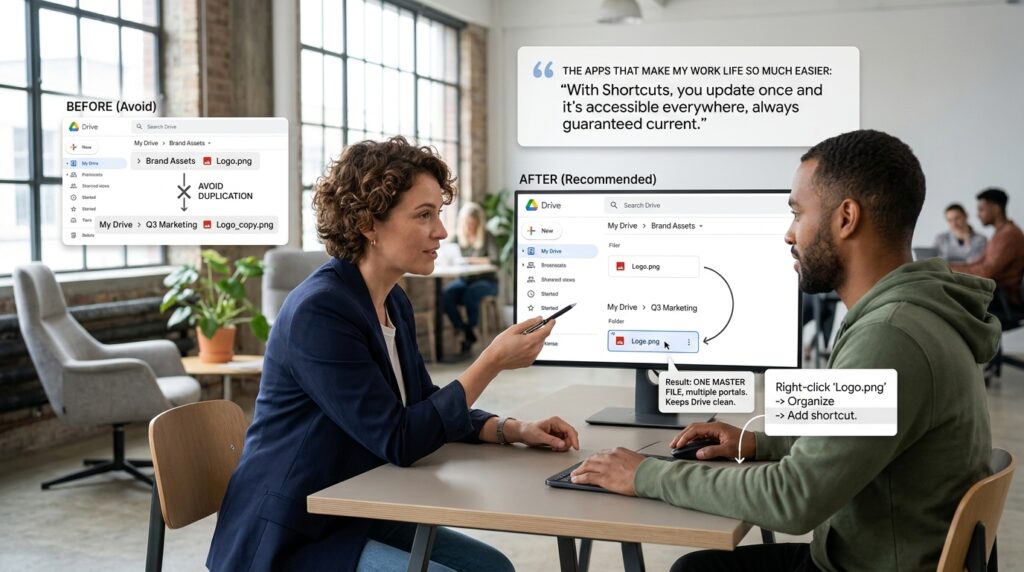
Let’s say you have a master “Company Logo” image file. You want it to live in your “Brand Assets” folder, but you also need it inside the specific “Q3 Marketing Campaign” folder so your freelancers can find it easily.
Historically, people would just make a copy of the file and put it in the second folder. This is a terrible idea. If you update the logo in one folder, the copy in the second folder doesn’t update. You create a version control nightmare where nobody knows which file is the correct, most recent version.
Google Drive fixed this by introducing “Shortcuts.”
Now, I leave the master logo file in the “Brand Assets” folder. I right-click it, select “Organize,” and then click “Add shortcut.” I place that shortcut into the “Q3 Marketing Campaign” folder.
The shortcut looks like a regular file with a tiny arrow on the icon. When my freelancer clicks it, it simply acts as a portal, redirecting them to the original master file. There is only ever one file to update, but it can be accessed from a dozen different folders simultaneously. Integrating this logic fundamentally changed my workflow, a concept I frequently revisit when discussing The Apps That Make My Work Life So Much Easier. It keeps your Drive clean and guarantees you are always looking at the most current data.
5. The “Starred” System for Evergreen Documents
While Workspaces are great for temporary, active projects, you also have “Evergreen” documents. These are files you need to access constantly, year-round.
For me, these are things like my company’s W-9 tax form, my media kit, my brand hex color codes, and my digital signature file.
You should never have to search for these files. You need to use the “Starred” feature.
If you right-click any file or folder and select “Add to Starred,” it pins that item to a dedicated tab on the left-hand sidebar of your Drive.
I keep my Starred folder ruthlessly curated. It only ever contains about ten files. If a client emails me asking for my W-9, I don’t go digging through my “Taxes” folder. I click the Starred tab, grab the file, and attach it to the email in under five seconds.
6. Linking Ideas: Integrating Google Keep
File management isn’t just about massive spreadsheets and PDFs; it is also about managing your fleeting thoughts and meeting notes.
A lot of people use third-party note apps, but they completely ignore Google Keep, which is built directly into the Google Drive ecosystem.
If you look at the far right side of your Google Drive screen (on a desktop browser), you will see a tiny, vertical sidebar with a yellow lightbulb icon. That is Google Keep.
When I am reading a long Google Doc—like a project brief—and I suddenly have a brilliant idea for a marketing angle, I don’t open a separate app. I click the yellow lightbulb. A notepad slides out right next to the document.
I can type my idea into the notepad. Even better, Google Keep automatically attaches a hyperlink of the Google Doc directly to that specific note. Three days later, when I review my notes, I can just click the link in the note and it instantly opens the exact project brief I was reading. Finding tools that bridge the gap between heavy files and quick thoughts is a process I outlined heavily in 10 Note-Taking Apps That Actually Help You Stay Organized. Integrating your notes directly into your cloud storage eliminates a massive amount of digital friction.
7. The Ultimate Safety Net: Version History
This last tip isn’t about organizing files; it’s about saving them from total destruction.
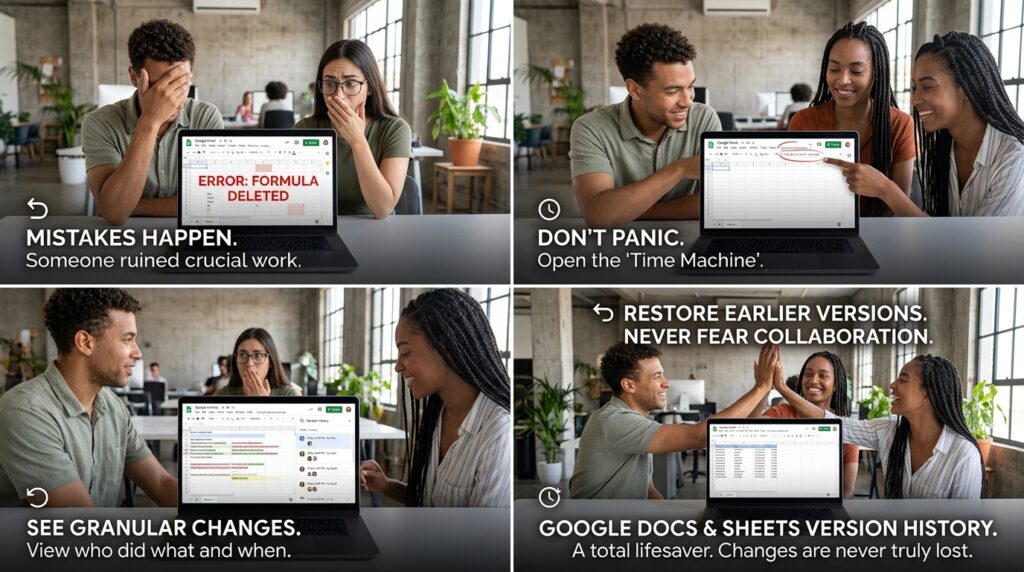
If you collaborate with other people in Google Docs or Google Sheets, eventually, someone is going to mess up. A freelancer might accidentally delete three crucial paragraphs of text, or a colleague might ruin a complex formula in a spreadsheet. Because Google automatically saves every keystroke, that mistake is instantly committed to the cloud.
When this happens, people usually panic and try to frantically hit the “Undo” button.
You don’t need to panic. You just need to open the Time Machine.
At the very top of any Google Doc or Sheet, right next to the “Help” menu, there is a subtle line of text that says, “Last edit was seconds ago.” If you click that text, it opens the Version History panel.
This panel contains a granular, timestamped record of every single change ever made to that document since the day it was created. It highlights exactly who made the changes and what they deleted. You can click on a version from three days ago, see the original text perfectly intact, and hit “Restore this version.”
It is an absolute lifesaver that completely removes the fear of collaboration. You can never truly break a Google Doc, because the history is always waiting there to rescue you.
Final Thoughts on Digital Minimalism
We spend an inordinate amount of time trying to organize our physical spaces. We buy fancy storage bins, we follow minimalist gurus who tell us to throw away old clothes, and we deep-clean our kitchens to maintain our peace of mind.
Yet, we completely neglect our digital spaces, allowing them to become bloated, chaotic, and stressful.
Your Google Drive is your digital office. If your office is a mess, your work will be a mess.
Taking control of your cloud storage is not a complex, highly technical endeavor. It just requires an afternoon of intentionality. Take the time to build a visual hierarchy with colors and emojis. Stop making duplicate files and start using shortcuts. Learn to use the search operators so you can stop scrolling and start finding.
When you trust your filing system—when you know exactly where everything is, and you know you can retrieve it in three seconds or less—a profound sense of professional calmness washes over you. You stop managing your files, and you finally get back to actually doing your work.
