
Do you remember what Instagram used to look like back in the early 2010s?
It was brilliantly simple. You opened the app, applied a heavily saturated “Valencia” or “X-Pro II” filter to a square photo of your lunch, added a thick white border, and posted it. You saw exactly what your friends were doing, exactly when they posted it. There were no algorithms, no shopping tabs, no Reels, and no suggested posts.
Today, opening Instagram feels less like flipping through a photo album and more like walking into the middle of Times Square.
The platform has grown into a massive, highly complex digital ecosystem. While the developers are constantly pushing new updates to keep us engaged, the actual user interface has become so crowded that some of the most powerful tools are buried deep within confusing menus.
For a long time, I felt like the app was controlling me. I was constantly battling the algorithm, seeing posts from accounts I didn’t care about, and feeling completely overwhelmed by the sheer volume of noise. I assumed that was just the price we had to pay to use modern social media.
But then, I decided to do a deep dive. I spent an entire weekend poking around the deepest corners of the settings menu, testing gestures, and looking up developer patch notes.
What I discovered completely changed my relationship with the platform. There is a whole world of hidden functionality designed to give you your power back, protect your peace, and make creating content infinitely easier. If you are tired of fighting the algorithm, here are the Instagram features that most people don’t know about, and how you can use them to reclaim your feed.
1. The Hidden Chronological Feed (The “Following” and “Favorites” Oasis)
Let’s start with the biggest complaint everyone has about modern Instagram: the timeline.
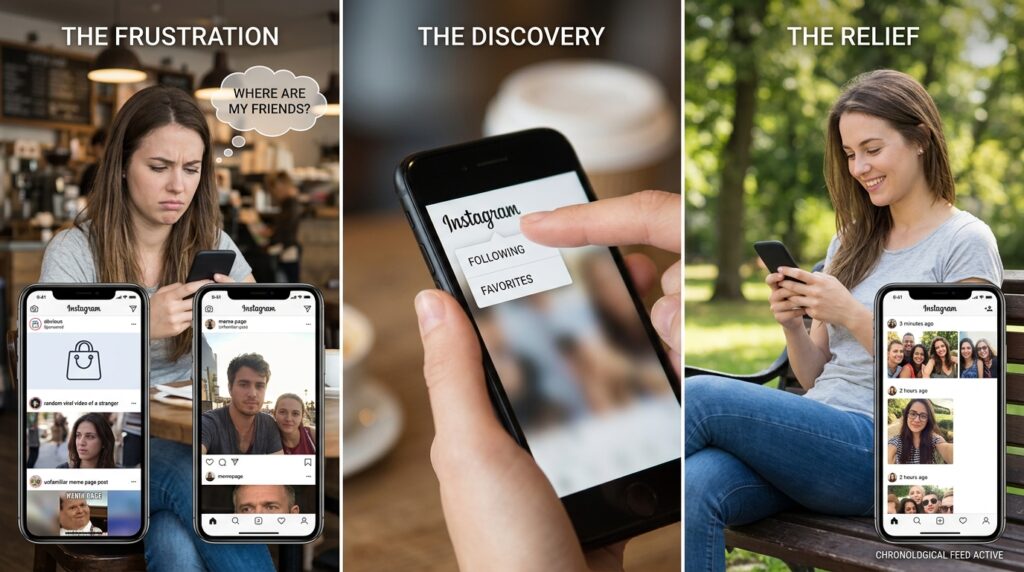
You open the app to see photos of your friends, but instead, the algorithm serves you three sponsored posts, a viral video of a stranger baking bread, and a meme page you don’t even follow. You end up scrolling for ten minutes before you actually see a post from someone you know.
The algorithm dictates the main feed to maximize your watch time, but Instagram quietly gave us an escape hatch. They brought back the chronological feed—they just hid it.
When you open the app and look at the top left corner of your screen, you will see the classic Instagram logo. Most people don’t know that this logo is actually a hidden button.
If you tap the word “Instagram,” a small drop-down menu appears with two options: Following and Favorites.
If you tap Following, your feed instantly transforms. All the suggested posts disappear. All the random algorithm-injected viral videos vanish. You are left with a beautifully clean, 100% chronological feed of only the people you actively chose to follow, starting with the most recent post at the very top.
If you want to take it a step further, you can manage your Favorites list. You can add up to 50 accounts to this list—your closest friends, your partner, or your favorite creators. When you tap the “Favorites” feed, you only see their posts. Discovering this hidden toggle was a massive breakthrough, heavily influencing the workflow I adopted when exploring How to Unlock Hidden Features in Almost Any App. It allows you to check in on the people who actually matter without getting sucked into the algorithmic void.
2. The “Hidden Words” Filter for Ultimate Peace of Mind
The internet can be a wonderful place, but it can also be incredibly toxic. If you have a public account, or even if you just follow popular pages, the comment sections and your Direct Message requests can quickly become a dumping ground for spam, negativity, or crypto scams.
I used to spend a frustrating amount of time manually deleting spam comments that said “Promote it on [ScamPage]!” from my photos.
Then I found the Hidden Words feature.
If you go to your profile, tap the three horizontal lines in the top right (the hamburger menu), and go to Settings and Privacy > Hidden Words, you enter a highly customizable digital shield.
Instagram has a default list of offensive words it automatically hides, but the real power is in the “Custom words and phrases” section. You can type in any word, phrase, or even specific emojis that trigger your anxiety or clutter your feed.
I added words like “crypto,” “forex,” “promote it on,” and a few political keywords that I simply didn’t want to engage with during election season. Once these are added, Instagram works in the background like a silent bouncer. If someone comments those words on your post, or sends them in a DM request, the app automatically hides them. You never even see them. You can completely sanitize your digital environment without anyone knowing.
3. The “Recently Deleted” Vault
Have you ever accidentally deleted a photo from your grid?
Maybe your phone slipped, your thumb hit the wrong button, or you were sleep-deprived and thought you were archiving a post, but you actually hit delete. In the old days of Instagram, that photo, along with all of its likes and comments, was gone forever into the digital abyss.
Instagram quietly fixed this by adding a “Trash Bin” similar to the one on your computer desktop, but it is buried deep in the settings where nobody looks.
If you accidentally delete a Post, a Reel, or a Story, don’t panic.
Go to your profile, tap the hamburger menu, and select Your Activity. Scroll down until you see a folder with a trash can icon labeled Recently Deleted.
Everything you delete is stored in this vault for exactly 30 days (Stories are stored for 24 hours if not archived). You can tap the accidentally deleted item, hit the three dots, and select “Restore.” It will pop right back onto your grid exactly where it was, with all the original comments perfectly intact. Knowing this safety net exists completely removes the terror of organizing your grid.
4. The Secret Solid Color Background Trick for Stories
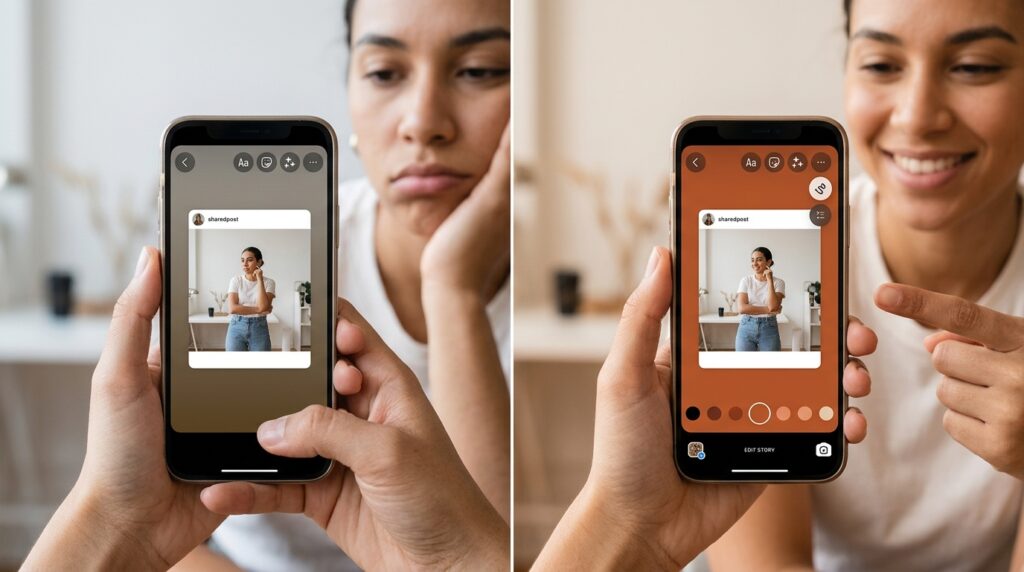
If you share someone else’s post to your Instagram Story, the app automatically generates a gradient background based on the colors in the photo. Most of the time, this gradient looks muddy and terrible.
For a long time, I thought you just had to accept the ugly background. I would see influencers posting beautifully branded Stories with solid, aesthetically pleasing background colors and wonder what expensive third-party graphic design app they were using.
It turns out, you can do it natively inside the app with a hidden gesture.
When you share a post to your Story (or take a new photo), tap the three dots in the top right corner and select the Draw tool (the little squiggly line).
At the bottom of the screen, you will see a color palette. You can tap the eyedropper tool to select a specific color from the photo itself, or just pick a color from the standard circles.
Now, here is the secret trick: Instead of trying to draw on the screen, take your finger and press and hold it anywhere on the empty background for about three seconds.
The entire screen will magically fill with that solid color, completely replacing the ugly gradient while keeping the shared post perfectly visible in the center. Finding this out completely changed my content creation process, a revelation that goes hand-in-hand with the techniques I detailed in Hidden Editing Features in Photo Apps That Improve Photos Instantly. It is a two-second hack that makes your Stories look instantly professional.
5. The Quick-Send DM Gesture
If you are like me, 90% of your Instagram usage is just finding funny Reels and sending them to the exact same three or four friends.
The traditional way to do this is to tap the paper airplane icon under the video, wait for the menu to slide up, scroll through your list of contacts, tap your friend’s name, and then hit send. It is a multi-step process that feels incredibly slow when you are doing it twenty times a day.
Instagram built a massive shortcut for this, but they never told anyone about it.
Instead of tapping the paper airplane icon, try pressing and holding it.
If you long-press the icon, a small bubble will instantly pop up around your finger showing the profile pictures of your four most frequently messaged friends. Without lifting your finger off the glass, simply slide your thumb over to your best friend’s face and release it.
The video is instantly sent. No menus, no scrolling, no “Send” button. It turns a clunky sharing process into a frictionless, half-second flick of the thumb.
6. Taking Back Your Time with “Quiet Mode”
The constant pinging of Instagram notifications is designed to create a sense of manufactured urgency. When your phone vibrates, your brain demands that you check it, pulling you out of the present moment.
If you are trying to study, work, or just spend quality time with your family, you need boundaries. You could put your phone on airplane mode, but that blocks important phone calls.
Instagram introduced a native boundary tool called Quiet Mode.
Go to Settings and Privacy > Notifications > Quiet Mode.
You can set specific hours when the app is legally not allowed to bother you. I set my Quiet Mode from 10:00 PM to 8:00 AM. During those hours, Instagram will completely mute all notifications.
But the best part is the social signaling. If someone tries to send me a direct message at 11:30 PM, the app will display a small moon icon next to my name in their chat, and it will automatically reply with an auto-responder saying: “User is currently in Quiet Mode and will not receive this notification.”
It establishes a firm boundary without making you look rude for ignoring a message. Taking control of when you are accessible is a mandatory skill in the modern world, which is exactly why I advocate for these boundaries in Tips for Managing Multiple Social Media Apps Efficiently. You do not owe an app twenty-four hours of your attention.
7. Organizing Your Saved Posts with Collaborative Collections
We all use the little “Bookmark” icon to save things we want to look at later. But if you just dump everything into the default “All Posts” folder, it becomes an unsearchable nightmare.
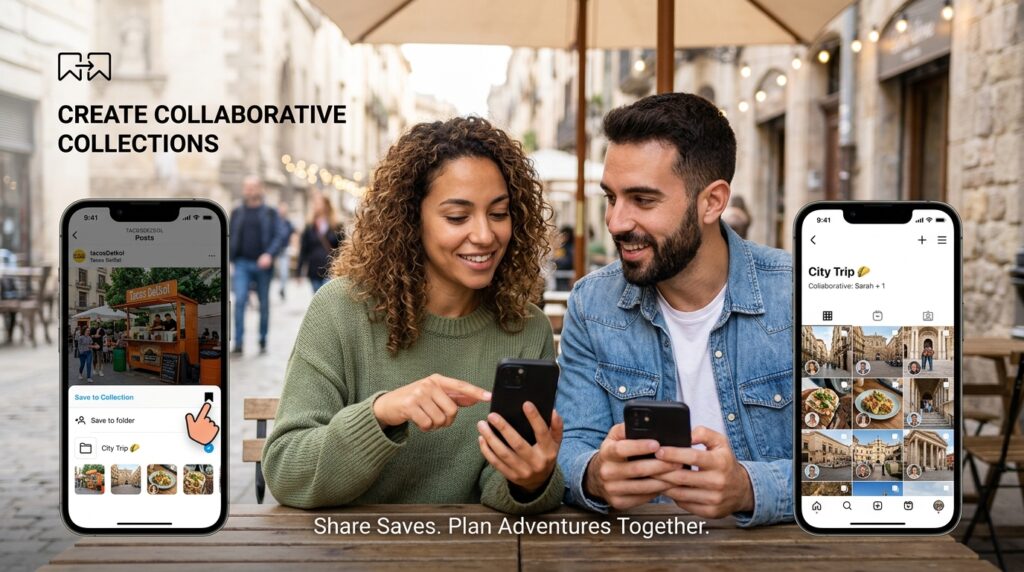
You probably know you can create custom folders (Collections) for things like “Recipes” or “Travel Destinations.” But a recently added, hidden gem is the ability to make these collections Collaborative.
Let’s say you are planning a weekend trip to a new city with your partner. When you create a new Collection to save restaurants and sightseeing spots, look for the toggle that says “Collaborative.”
You can invite your partner to join the folder. Now, when either of you is scrolling through Instagram on your own time and sees a great taco stand in that city, you can both save it directly to the shared folder. It turns a solitary bookmarking tool into a highly effective, visual project-planning hub for your entire social circle.
Final Thoughts: Become the Master of the App
When you download an app and blindly accept its default layout, you are playing by someone else’s rules. You are allowing engineers in Silicon Valley to dictate how you consume information, how you communicate with your friends, and how much of your attention gets harvested.
Instagram is a powerful, visually stunning platform, but it is fundamentally built to serve its advertisers first.
You have to actively take the wheel. By digging into these hidden features—by forcing the feed into chronological order, setting up custom word filters, utilizing Quiet Mode, and mastering the shortcut gestures—you completely flip the dynamic.
You stop being a passive consumer trapped in an endless scroll, and you become an active curator of your own digital space. Take twenty minutes today to adjust your settings. Mute the noise, organize your collections, and reclaim your feed. The platform is infinitely more enjoyable when you finally realize you are the one in control.
