
For a long time, I genuinely believed I was just biologically bad at typing on a smartphone.
I would sit on the subway, frantically trying to fire off a long email to a client, and my thumbs would just constantly betray me. I’d hit the period instead of the spacebar. I’d misspell my own email address. I’d try to fix a typo in the middle of a word, miss the letter, delete the entire sentence in frustration, and start over from scratch.
Meanwhile, I would look at the teenager sitting across from me, and their thumbs were an absolute blur. They were writing entire novels in their group chats without even breaking eye contact with the person next to them.
I felt like a technological dinosaur. I assumed my thumbs were just too big or my screen was too small.
But one day, a friend watched me struggling to type out my physical home address in a text message. I was switching back and forth between the letter keyboard and the number keyboard, carefully hunting and pecking for every digit. My friend gently took my phone, changed one setting, and showed me a trick that completely blew my mind.
That was the moment I realized I wasn’t bad at typing; I was just ignorant of the tools.
The glass keyboard on your mobile device is not just a digital replica of a vintage typewriter. It is a highly advanced piece of software packed with hidden gestures, invisible trackpads, and predictive algorithms. If you are still hunting and pecking every single letter, you are wasting an astonishing amount of time.
Here are the mobile keyboard shortcuts that completely transformed my digital communication, and how you can use them to make your typing exponentially faster.
1. The Greatest Secret: The Spacebar Trackpad
Let’s start with the single most frustrating experience in mobile typing: fixing a typo.
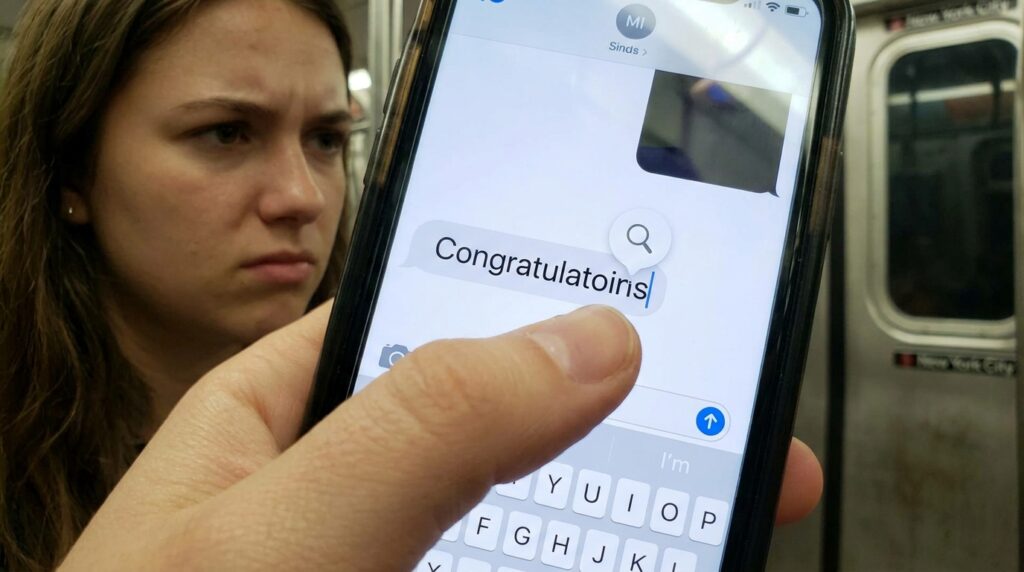
Let’s say you write the word “Congratulatoins.” You see the ‘o’ and the ‘i’ are swapped. In the old days, you had to tap your finger on the screen, hoping to land exactly between those two tiny letters. You would miss. You’d try again. A little magnifying glass would pop up, and you’d try to drag the cursor, but your thick finger would obscure the screen, and you’d end up dropping the cursor in the completely wrong spot.
You never have to do that again.
Whether you use an iPhone or an Android device (like Gboard), your spacebar hides a massive secret. If you press and hold your thumb down on the spacebar for just one second, the letters on the keyboard will suddenly vanish.
The entire bottom half of your screen has just transformed into a laptop-style trackpad.
Without lifting your thumb, you can gently slide it left, right, up, or down. The text cursor will glide through your paragraph with absolute, pixel-perfect precision. You can drop the cursor exactly where you need it in a fraction of a second. The first time I learned this, I felt a profound sense of betrayal that Apple and Google don’t force you to learn this in a tutorial. It is the holy grail of mobile typing.
2. Stop Typing Your Email: Text Replacement
Think about how many times a week you type your own email address. Now think about your physical home address, your phone number, or the phrase “Sounds good, I’ll let you know.”
Manually typing these out letter by letter is a massive drain on your time and mental energy. You can automate this completely using a native feature called “Text Replacement” (iOS) or “Personal Dictionary” (Android).
This feature allows you to create tiny, customized abbreviations that instantly expand into full sentences or complex data.
I went into my settings and set up a robust system. If I type @@, my phone instantly replaces it with my personal email address. If I type @@@, it expands into my work email. If I type addr, it spits out my full physical home address, complete with the zip code.
I even use this for professional boundaries. If someone messages me on a weekend, I simply type ooo (Out of Office), and it automatically expands into: “Hi! I received your message, but I am currently away from my desk until Monday. I will get back to you then.”
Removing this repetitive administrative friction is a core tenant of my workflow, a concept I explored deeply in How I Automate Repetitive Tasks for Maximum Productivity. Your phone should do the heavy lifting for the things you say every day.
3. The Punctuation Swipe (The “123” Hack)
This is the shortcut that separates the amateurs from the pros.
When most people need to type a question mark or a comma, they perform a three-step dance. They tap the 123 key to switch to the numbers/symbols layout. They tap the question mark. Then they tap the ABC key to return to the normal letter layout.
That is three separate taps just to end a sentence.
You can do it in one single, continuous motion. When you are typing and need a symbol, press your thumb down on the 123 key, but do not lift your finger. Instead, drag your thumb directly over to the question mark (or the comma, or the exclamation point), and then release your thumb.
The symbol will appear on your screen, and the keyboard will instantly, automatically snap back to the ABC letter layout. You never actually leave the main keyboard. It feels incredibly fluid once you build the muscle memory.
4. The Capitalization Drag
Similar to the punctuation swipe, capitalizing a single letter usually trips people up. You want to capitalize the word “Project,” so you tap the Shift (Up Arrow) key, then you tap the “P”, and continue typing.
You can streamline this.
Press and hold the Shift key, and drag your thumb directly to the letter you want to capitalize. Once you release your thumb, the capital letter is typed, and the keyboard automatically reverts back to lowercase.
This is incredibly useful when you are typing out passwords or proper nouns that the autocorrect doesn’t recognize. These tiny gesture shortcuts might only save you one second at a time, but finding ways to claw back those seconds is exactly what I wrote about in Simple App Shortcuts That Save Me Hours Every Week. The speed compounds throughout the day.
5. Double-Tap Space for a Full Stop
This is one of the oldest smartphone shortcuts in the book, but I am constantly shocked by how many people still don’t use it.
When you reach the end of a sentence, you do not need to look for the period key. Just double-tap the spacebar rapidly.
The software will automatically insert a period, add a space, and engage the Shift key so your next letter is perfectly capitalized to start the new sentence. Once you get used to this rhythm, you will never manually type a period at the end of a paragraph again.
6. Shrinking the Board: One-Handed Mode
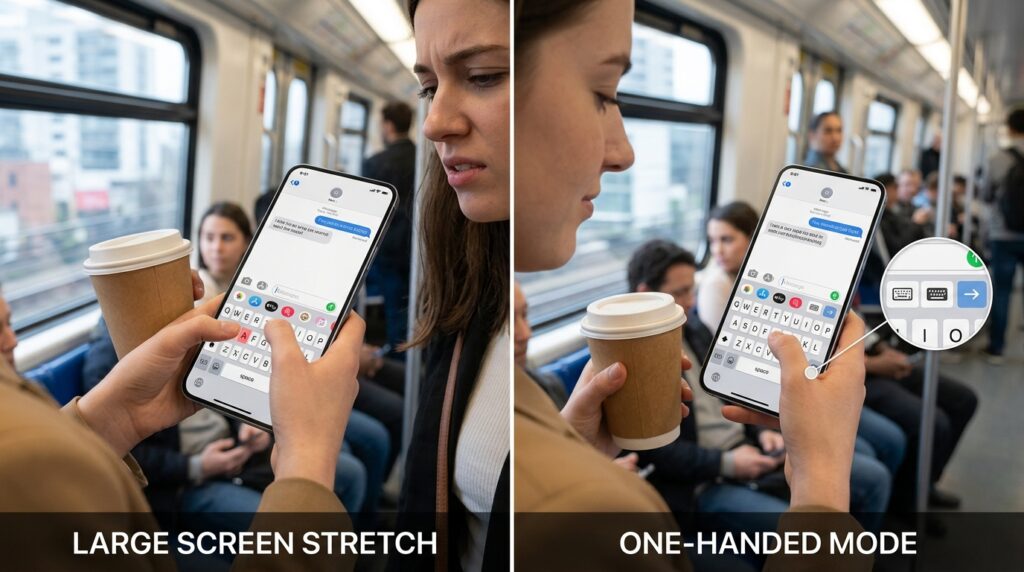
Smartphones have gotten massive. I have a phone with a 6.7-inch screen, which is fantastic for watching YouTube videos, but it is an absolute nightmare when I am holding a cup of coffee in one hand and trying to text with the other.
My thumb physically cannot reach the letters on the far side of the screen, forcing me to shift the phone awkwardly in my palm (which usually results in me dropping it).
You can solve this by temporarily shrinking the keyboard.
If you use an iPhone, press and hold the globe or emoji icon at the bottom left of your keyboard. A small menu will pop up showing three keyboard icons. If you tap the one with the arrow pointing right, the entire keyboard will shrink and dock itself to the right side of the screen.
Suddenly, every single letter is within easy reach of your right thumb. (If you are left-handed, dock it to the left). On Android’s Gboard, you can access this by long-pressing the comma key.
Adjusting the physical geometry of your digital tools to fit your environment is a crucial step in mobile efficiency, something I heavily advocate for in App Settings I Changed That Boosted My Phone’s Productivity. When I have my hands full on the train, one-handed mode is an absolute lifesaver.
7. Holding Keys for Hidden Symbols
The default keyboard you see on your screen is just the surface layer. There are dozens of hidden symbols, accents, and punctuation marks buried beneath the keys.
If you are typing a price in Euros or Pounds, you don’t need to dig through three menus of obscure symbols to find it. Just press and hold the dollar sign ($). A hidden bubble will pop up offering the €, £, and ¥ symbols. Just slide your finger to the one you want.
This works for almost everything.
-
Hold the dash (
-) to find an em-dash (—) or a bullet point (•). -
Hold the zero (
0) to find the degree symbol (°). -
Hold any vowel (like
e) to access all of its international accents (é,è,ê). -
Hold the period (
.) on your browser keyboard to instantly type.com,.org, or.net.
Stop wasting time searching for special characters. They are almost always hiding right underneath their closest equivalent.
8. Trust the Algorithm: Glide Typing (Swipe to Type)
For years, I completely ignored the “Swipe” typing feature. It looked messy, and I didn’t trust the phone to know what I was trying to say. I insisted on tapping every single letter.
But out of sheer desperation one day, I decided to actually try it.
Glide typing (or Swipe, or QuickPath) allows you to keep your thumb pressed on the screen and simply draw a line connecting the letters of the word you want to spell.
At first, you will try to be overly precise, slowly dragging your finger from letter to letter. But the real magic happens when you let go of perfection and trust the predictive algorithm. You can be incredibly sloppy. If you roughly scribble across the general area of the letters ‘h’, ‘e’, ‘l’, ‘l’, ‘o’, the phone’s AI will almost always instantly output the word “hello.”
Once you build trust with the algorithm, your typing speed will skyrocket. You can write entire paragraphs using just one thumb in a continuous, flowing motion. It is especially brilliant for walking or situations where you can’t devote 100% of your visual focus to the exact placement of your fingers.
9. Give Up and Talk: Voice Dictation
Finally, we have to acknowledge the elephant in the room. The absolute fastest way to type on a mobile keyboard is to not type at all.
I used to hate Voice Dictation. Back in 2015, if I tried to speak to my phone, the transcription would look like a drunken madman had written it. It misunderstood my accent, missed every punctuation mark, and required so much manual editing that it wasn’t worth the effort.
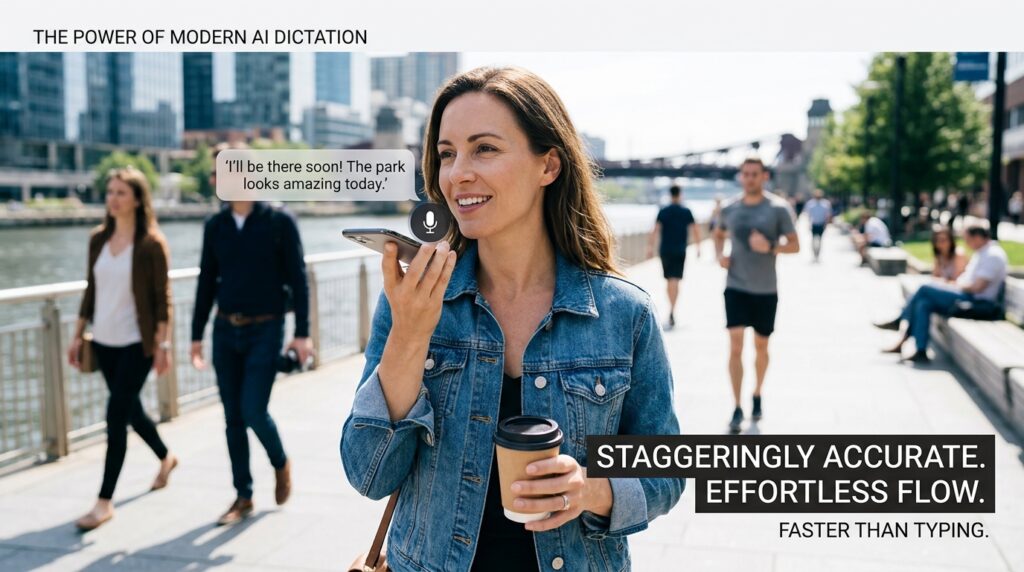
That is no longer the case. The AI models powering modern smartphone dictation are staggeringly accurate.
If I am walking down the street and need to send a long reply, I just tap the microphone icon. I speak naturally, and the software perfectly transcribes my thoughts in real-time. Modern systems (like Apple Intelligence or Google Assistant voice typing) will even automatically insert commas and periods based on the natural cadence and pauses in my voice.
If you are still manually typing out three-paragraph emails on a tiny glass screen when you are alone in your car or your living room, you are doing it the hard way. Press the microphone.
Final Thoughts: The Compound Interest of Speed
Learning these keyboard shortcuts is a lot like learning to drive a manual transmission car.
At first, it feels awkward. You have to consciously think about holding the spacebar to move the cursor, or swiping from the number key to grab a question mark. It might actually feel a little slower for the first two days while your brain builds the new neural pathways.
But if you force yourself to use these tricks for just one week, muscle memory takes over.
Suddenly, your thumbs are dancing across the glass. You stop looking at the keyboard and start looking at the actual text. The friction between your thoughts and the screen completely disappears. You can draft emails, reply to texts, and take notes in a fraction of the time.
Stop accepting the slow, default way of communicating. Adjust your settings, build your text replacements, and learn the gestures. Your thumbs will thank you.
