
Have you ever watched those “aesthetic smartphone makeover” videos on social media?
The ones where someone spends an entire weekend downloading custom icon packs, building complex widgets from scratch, and completely redesigning their interface to look like a retro video game console or a minimalist art gallery?
It always looks absolutely incredible on video. But honestly, just watching the process makes me feel exhausted.
I love the idea of a personalized digital environment. I want my phone to feel like my phone, tailored exactly to how my brain works. But I absolutely refuse to spend my precious free time digging through fifty layers of complicated developer sub-menus, or installing clunky, battery-draining third-party customization software just to change the color of a button.
For a long time, I assumed that true customization required a high level of technical patience. I thought that if you wanted a streamlined experience, you had to be willing to code it yourself or navigate a labyrinth of settings menus.
I was wrong.
The software developers at Apple and Google know that most of us are lazy. They know we want our apps to adapt to us, but we don’t want to read a manual to figure out how to do it. Because of this, they have quietly built incredibly powerful, surface-level customization tools right into the user interfaces we look at every single day.
You do not have to dive into the deep end of the settings pool to make your digital life easier. If you want a phone that feels custom-built for you without the headache, here are the best tricks to customize your apps without ever touching a complicated settings menu.
1. The Magic of the Long-Press (Creating Custom Quick Actions)
We are deeply conditioned to tap our screens. You tap an icon to open an app, you tap a button to send a message, and you tap a photo to like it.
But the true secret to surface-level customization lies in the “long-press.”
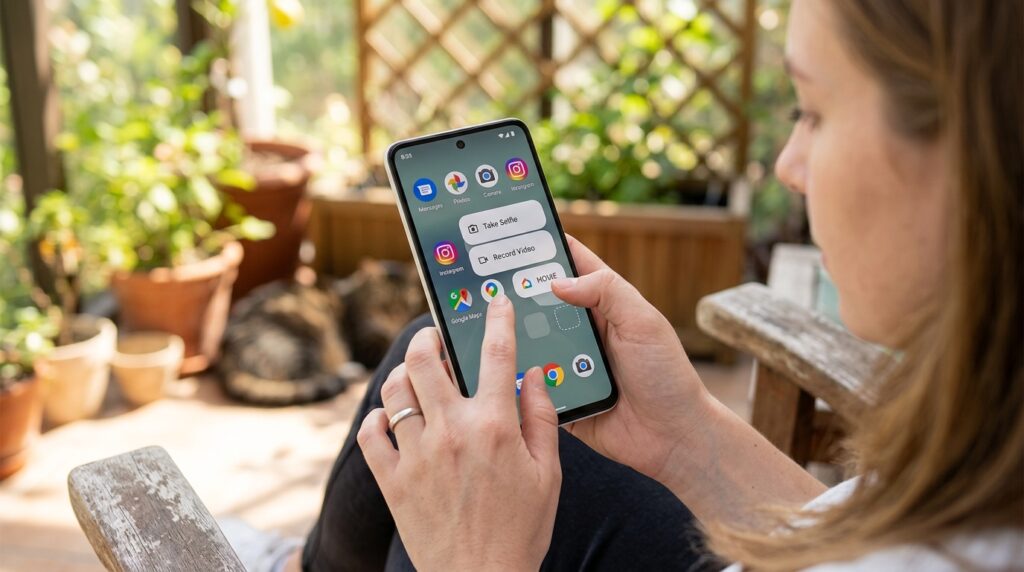
When you press and hold your finger down on an app icon on your home screen, you aren’t just telling the phone you want to move the app around. You are actually pulling up a hidden context menu of quick actions.
If you long-press the Camera icon, a menu pops up allowing you to jump straight into “Take a Selfie” or “Record Video.” If you long-press your favorite podcast app, it will show your most recently played shows.
But here is the customization trick that most people miss: On many Android devices and in specific iOS workflows, you can actually drag those specific quick actions out of the bubble and drop them directly onto your home screen as a brand new, standalone icon.
For example, I frequently use Google Maps to navigate home. Instead of opening the app, typing my address, and hitting start, I simply long-pressed the Maps icon, grabbed the “Navigate Home” action, and dragged it onto my home screen.
Now, I have a custom icon that executes a complex, multi-step action with a single tap. I lean heavily on this logic, a concept I explored in Simple App Shortcuts That Save Me Hours Every Week. You are effectively building your own customized app interfaces without writing a single line of code.
2. Taming the Share Sheet
This is one of the most universally frustrating experiences in modern smartphone usage.
You take a hilarious photo of your dog, and you want to text it to your best friend. You tap the “Share” button. Suddenly, a massive, chaotic menu slides up from the bottom of the screen.
Instead of showing your best friend’s text thread first, the menu aggressively suggests that you send the photo to a coworker via LinkedIn, upload it to a random Slack channel you haven’t used in three years, or email it to your accountant.
The “Share Sheet” is notoriously disorganized, but you can customize it permanently in about five seconds.
The next time you pull up the Share Sheet, scroll all the way to the right side of the app icons until you see a button that says “More” or “Edit.”
Tap it, and you will see a list of every app that is allowed to appear in that menu. You can simply drag your most frequently used apps—like Messages, WhatsApp, or Instagram—to the very top of the list under “Favorites.” Then, you can completely toggle off the apps you never use.
By reorganizing this menu once, you permanently customize how data moves around your phone. You eliminate the friction of searching for the right app every time you want to share a link or a photo.
3. Widget Stacking for a Minimalist Aesthetic
Widgets are a fantastic way to customize your home screen, but they come with a massive downside: they take up too much physical space.
If you add a weather widget, a calendar widget, and a to-do list widget to your screen, you suddenly have no room left for your actual app icons. Your phone goes from looking helpful to looking cluttered and chaotic.
The trick to getting maximum customization with minimal visual noise is Widget Stacking.
Both iOS and Android now support this feature natively. You don’t need a special setting. You simply take one widget, press and hold it, and physically drag it directly on top of another widget of the exact same size.
They will snap together into a stack.
Now, instead of having three massive blocks taking up half your screen, you have one clean block. You can simply swipe up and down on that single block to cycle through your calendar, your weather, and your reminders. It gives you an incredibly customized, data-rich home screen that still looks minimalist and breathable.
4. Per-App Text Customization (The Silent Lifesaver)
If you have ever struggled to read the tiny font in a specific news app, your first instinct is probably to go into your main system settings, find the “Display and Text Size” menu, and drag the master slider up.
The problem is, if you change the master text size for your entire phone, everything else gets ruined. Your text messages become comically large, your home screen icons get pushed out of alignment, and your perfectly organized layout gets destroyed.
You don’t need to change the system settings. You just need to change the text size for that one specific app.
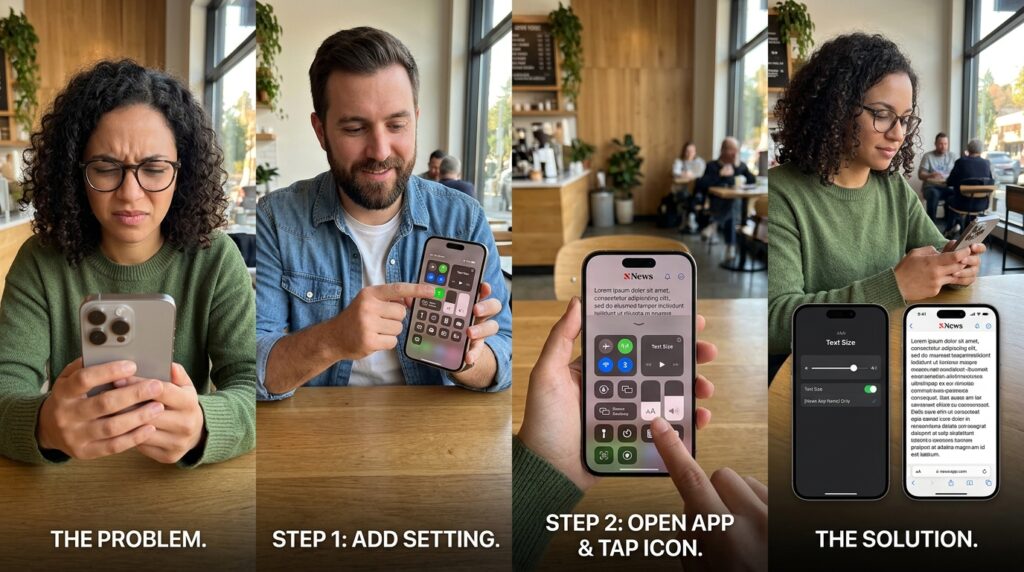
If you use an iPhone, there is a brilliant, hidden toggle in the Control Center (the menu you get when you swipe down from the top right corner).
First, go to your basic settings and add the “Text Size” icon (it looks like a small ‘A’ next to a large ‘A’) to your Control Center.
Now, open the specific app that is hard to read. Swipe down to open the Control Center, and tap the Text Size icon. At the bottom of the screen, you will see a toggle switch that says “All Apps” or “[Current App] Only.”
Select “[Current App] Only,” and slide the text size up. The text inside that specific app will instantly grow larger, but the rest of your phone will remain completely untouched. This subtle shift is a core component of what I covered in App Settings I Changed That Boosted My Phone’s Productivity. You customize the interface exactly where you need it, without causing collateral damage elsewhere.
5. Swiping to Triage Your Inbox and To-Do Lists
Most email applications and digital task managers look identical out of the box. They present you with a list of items, and you are expected to tap each item, open a new screen, and select an action from a menu.
But almost all of these apps have deeply customizable surface gestures that most people completely ignore.
Take the Gmail app, for instance. By default, if you swipe left on an email, it archives it. If you swipe right, it also archives it.
You can customize this directly from the app’s main front-end menu (under general settings -> swipe actions). You don’t have to navigate deep into your phone’s operating system.
I changed my left-swipe to “Delete” and my right-swipe to “Snooze.”
Now, my inbox triage is an incredibly fast, customized physical workflow. If an email is junk, I flick it to the left and it vanishes into the trash. If an email is important but I can’t deal with it right now, I flick it to the right, and the app asks me when I want it to reappear. Finding these intuitive tweaks completely shifts your digital experience, something I broke down thoroughly in How to Unlock Hidden Features in Almost Any App. Customizing your gestures makes the app feel like an extension of your own hands.
6. The “Silent Delivery” Notification Hack
Notifications are the enemy of peace. We all have those apps that we genuinely want to keep on our phones, but we absolutely despise the constant vibrating and dinging they produce.
Maybe it is a news app that sends “Breaking Alerts” every twenty minutes, or a retail app that constantly pings you about a flash sale.
Usually, to fix this, you have to open your main Settings app, scroll all the way down to find the specific app, tap “Notifications,” and manually turn off the banners, the sounds, and the badges. It is a tedious, multi-step process.
There is a way to customize this instantly from the lock screen the exact second the annoyance happens.
When a frustrating notification pops up on your lock screen, do not tap it. Instead, slowly swipe it to the left.
A hidden menu will appear with a button that says “Options” or “Manage.” If you tap it, you will see a brilliant option called Deliver Quietly.
If you select this, you are customizing the app’s behavior instantly without ever opening a menu. The app is still allowed to send you notifications, but they will no longer vibrate your phone, play a sound, or pop up on your lock screen. They will silently gather in your notification center, waiting for you to check them on your own terms.
7. Organizing the Control Center / Quick Settings
Your Control Center (iOS) or Quick Settings panel (Android) is the digital command deck of your phone. You access it constantly by swiping down from the top of the screen to turn on your flashlight, connect to Wi-Fi, or adjust your brightness.
But if you look at it right now, it is probably filled with buttons you have never touched in your life. Do you actually use the “Screen Mirroring” button every day? Do you need a dedicated button for the “Calculator” taking up prime real estate?
You can customize this layout in seconds, turning it into a highly personalized tool belt.
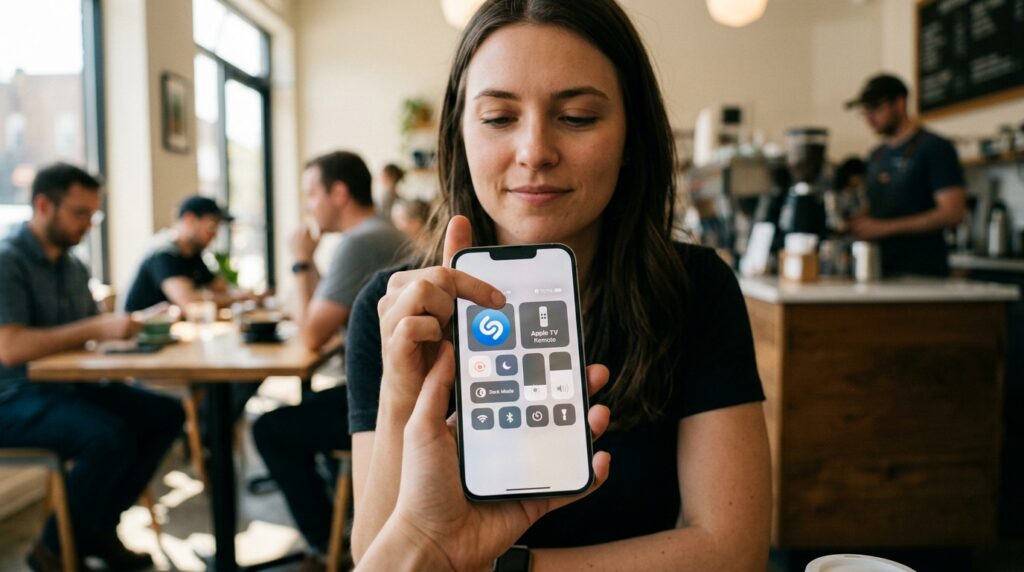
On Android, simply pull the shade down and tap the small pencil icon. On iOS, go to Settings > Control Center.
Delete the useless buttons. If you never use your phone as a mobile hotspot, remove the button. Then, replace them with tools that actually fit your lifestyle.
I added a “Shazam” button so I can instantly identify a song playing in a coffee shop with one swipe. I added an “Apple TV Remote” button so I never have to search the couch cushions for the physical remote again. I added a “Dark Mode” toggle so I can instantly dim the aesthetic of my phone when my eyes are tired. By customizing the quick settings, you put your most vital tools exactly one swipe away.
Final Thoughts: Making the Phone Yours
There is a massive misconception that customization has to be a heavy, technical lift. We assume that unless we are modifying the root code of our devices, we are just stuck with whatever layout the manufacturer decided was best for the average user.
But you are not the average user. You have specific habits, specific workflows, and specific annoyances.
Customizing your apps without complicated settings is just about paying attention to the surface-level tools right in front of you. It is about holding down an icon to see what happens. It is about swiping a notification instead of tapping it. It is about stacking your widgets to clean up your screen.
Take ten minutes tonight to sit on the couch and play with the surface of your screen. Reorganize your Share Sheet. Change the text size in that one app that always gives you a headache. Pull the quick actions out of your favorite apps and put them on your home screen.
When you stop treating your phone like a rigid, fragile piece of glass and start molding the interface to fit your actual life, it stops feeling like a generic piece of consumer electronics. It finally starts feeling like your phone.
