
Have you ever sat next to someone on a train and watched them type out their entire, overly complicated email address on their smartphone?
They meticulously hunt and peck for every single letter, constantly hitting the backspace key because their thumb accidentally brushed the wrong key. Then they have to switch to the numeric keyboard to find the “@” symbol, switch back to type “gmail,” switch back to find the period, and finally finish the address. It takes them a solid thirty seconds of intense concentration just to log into an app.
Watching this happen gives me a profound sense of secondhand anxiety.
We walk around with absolute supercomputers in our pockets, yet the vast majority of us use them as if they were digital typewriters. We accept the default settings, we tolerate the friction, and we perform the exact same series of five or six taps dozens of times a day to complete basic tasks.
“It only takes a few seconds,” we tell ourselves.
But seconds compound. If you perform a ten-second action twenty times a day, that is over an hour of your life wasted every single month just blindly tapping at a screen. It is death by a thousand micro-frictions.
A while back, I decided I was tired of being inefficient. I went on a deep dive into the hidden settings, accessibility menus, and developer shortcuts of my smartphone to see how much friction I could systematically eradicate from my daily life. What I found was astonishing.
You do not need to be a programmer to hack your daily workflow. By tweaking a few settings, you can completely change how you interact with your device. Here are the simple app shortcuts that save me hours every week, and how you can set them up right now.
1. The Spacebar Trackpad (The Ultimate Cursor Hack)
Let’s start with the single most frustrating aspect of mobile typing: fixing a typo in the middle of a word.
For years, if I misspelled a word in a text message, I would try to tap my thick thumb exactly between the two incorrect letters. I would inevitably miss, landing on the word next to it. I would tap again. Miss again. A tiny magnifying glass would pop up, I would try to drag it, and my frustration would skyrocket. I would often just delete the entire word and start over because it was faster.
Then, I discovered the spacebar trackpad.
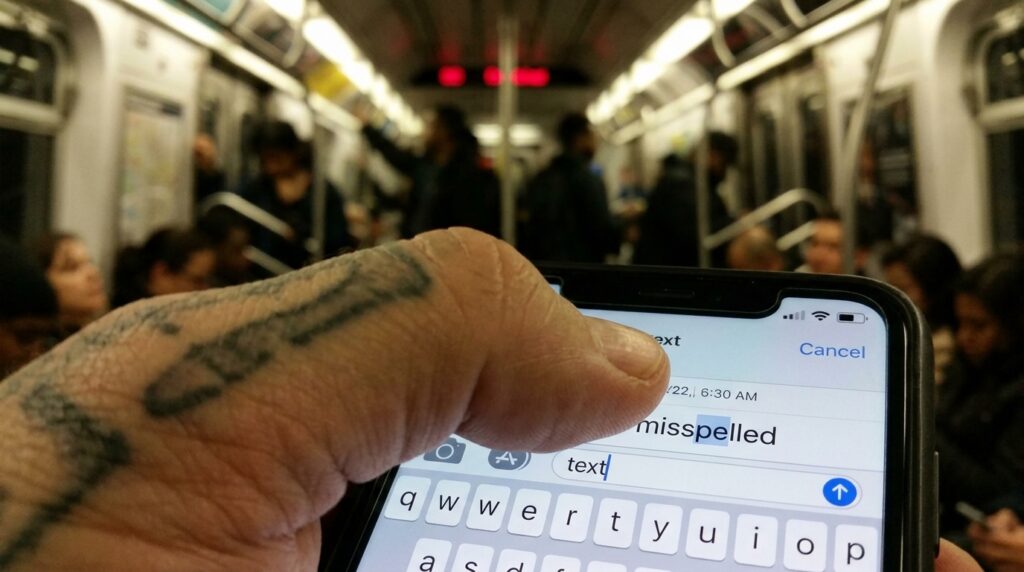
Whether you are using an iPhone or a modern Android keyboard (like Gboard), the spacebar hides a secret feature. If you press and hold your thumb down on the spacebar for one second, the letters on the keyboard will disappear. The entire bottom half of your screen instantly transforms into a laptop-style trackpad.
Without lifting your thumb, you can simply slide it left, right, up, or down, and the cursor will glide through your text with absolute, pixel-perfect precision. You can drop the cursor exactly between the “e” and the “r” in a split second. It is a revelation. I use this dozens of times a day, and it fundamentally changes the speed of mobile editing.
2. Text Replacement (The Micro-Typing Eradicator)
Going back to the email address problem—you should never, ever manually type your email address, your physical home address, or your phone number on a mobile device again.
Both iOS and Android have a feature called “Text Replacement” (or “Personal Dictionary”). This allows you to create tiny, customized acronyms that instantly expand into full sentences or complex data.
I set up a system that saves me endless typing.
If I type @@, my phone immediately replaces it with my primary email address. If I type @@@, it replaces it with my work email address. If I type ##, it drops in my full ten-digit phone number. If I type addr, it instantly types out my entire physical home address, including the zip code.
I even use this for polite, repetitive professional responses. If a client texts me outside of office hours, I simply type ooo, and it automatically expands into: “Hi! I’ve received your message, but I’m currently away from my desk. I’ll get back to you first thing tomorrow morning.”
Setting this up takes exactly five minutes, but the return on investment is massive. Getting comfortable with these built-in keyboard hacks is the first major step to digital efficiency, a concept I explored deeply when outlining Mobile Keyboard Shortcuts That Make Typing Faster. Once you stop manually typing repetitive information, your digital communication becomes incredibly fluid.
3. The “Back Tap” Hardware Hack
Did you know that the entire back of your smartphone is actually a hidden button?
Most people have absolutely no idea this exists, but modern smartphones contain highly sensitive accelerometers that can detect when you tap on the physical back casing of the device, even through a thick phone case.
On an iPhone, this is called “Back Tap” (hidden deep in the Accessibility settings). On Android, it is called “Quick Tap.” You can program the phone to execute specific actions when you double-tap or triple-tap the back of the device with your index finger.
I programmed my double-tap to turn on the flashlight. When I am walking to my car in the dark, or trying to find my keys at the bottom of a bag, I don’t have to wake my phone up, swipe down to find the control center, and look for the flashlight icon. I just tap the back of my phone twice, and the light instantly turns on.
I programmed my triple-tap to open my camera app. If I see something amazing happening in front of me, I can launch my camera blindly while I am pulling the phone out of my pocket, ensuring I never miss the shot.
4. Long-Pressing App Icons for Quick Actions
We are conditioned to open an app, wait for the interface to load, and then navigate through its internal menus to do what we want.
For example, if you want to send a new tweet, you tap the X (Twitter) app, wait for the timeline to load (getting distracted by three posts in the process), tap the plus button, and then start typing.
You can bypass the app interface almost entirely.
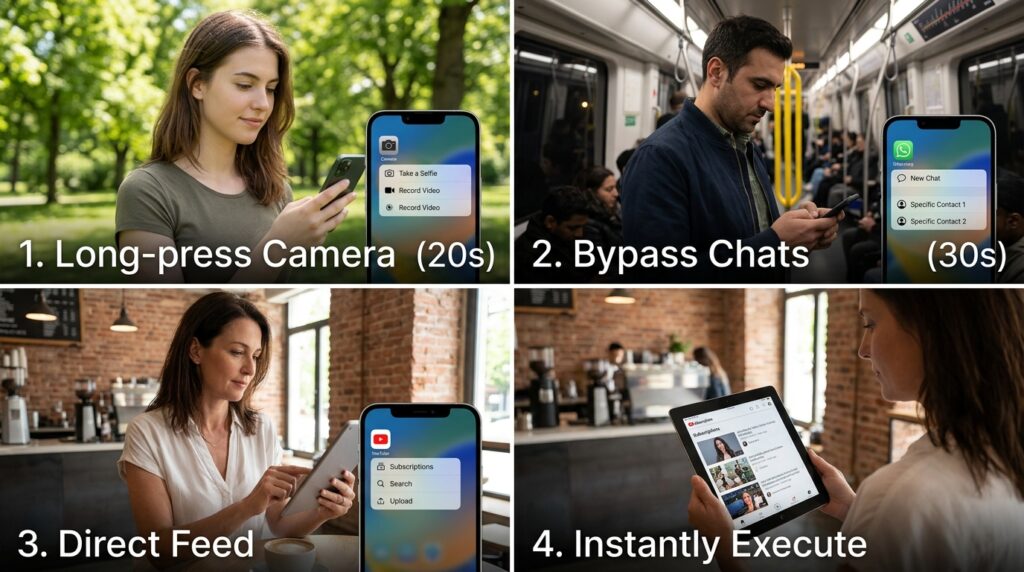
If you long-press (press and hold) an app icon on your home screen, a hidden menu of “Quick Actions” will pop up.
If you long-press the Camera icon, you can instantly select “Take a Selfie” or “Record Video,” jumping straight into that specific lens mode. If you long-press the WhatsApp icon, it will show your most frequent contacts so you can jump directly into a chat. If you long-press the YouTube icon, you can bypass the addictive homepage and jump straight into your “Subscriptions” feed.
This shortcut allows you to treat your apps like precise tools rather than distracting environments. You get in, you execute the specific action you need, and you get out before the algorithm has a chance to steal your attention.
5. Custom Voice Triggers for Complex Workflows
We generally underutilize voice assistants. Most people only use Siri or Google Assistant to set a kitchen timer or ask what the weather is going to be like.
But voice assistants can trigger massive, multi-step workflows if you program them correctly. This is the secret to moving from basic phone usage to advanced digital delegation, an evolution I detailed thoroughly in my guide on How I Turn My Phone Into a Personal Assistant.
Using the Apple Shortcuts app (or Google Assistant Routines), I created a custom voice command called “Heading to the Gym.”
When I sit in my car, I don’t touch my screen at all. I simply say, “Hey Siri, heading to the gym.”
Because I built the shortcut in advance, the phone instantly executes a five-step chain reaction. It sets my phone to “Do Not Disturb” mode so my workout won’t be interrupted. It opens my heavy lifting tracking app. It launches Spotify and automatically begins playing my specific “Workout Motivation” playlist at 80% volume. Finally, it pulls up the quickest driving route to my gym on Google Maps to check for traffic.
One simple phrase replaces about twenty manual screen taps.
6. Two-Finger Swipe for Instant Bulk Selection
If you have ever tried to delete a massive amount of old emails, or organize a camera roll full of hundreds of blurry burst-mode photos, you know the pain of the tiny selection circles.
You tap “Select,” and then you have to painstakingly tap every single individual photo or email you want to delete. If you have fifty items, you have to tap the screen fifty times.
There is a gesture hidden in both iOS and several Android apps that makes this effortless: the two-finger swipe.
In Apple Mail, Apple Notes, or the native Messages app, you don’t even have to hit the “Edit” or “Select” button. You simply take two fingers, press them onto the screen over the first message, and swipe downwards.
The app will instantly enter selection mode and begin highlighting every single item your fingers drag across. You can select fifty emails in about two seconds with one continuous motion. The first time you use this gesture to clear out a chaotic inbox, it feels like pure digital magic.
7. Leveraging NFC Tags for Real-World Shortcuts
This is where digital shortcuts cross over into the physical world.
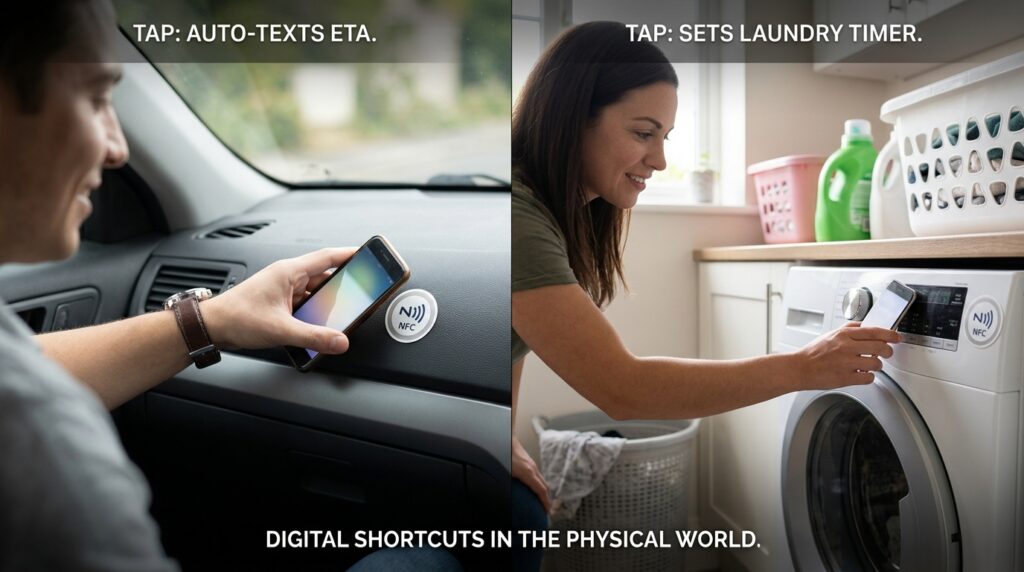
Near Field Communication (NFC) tags are tiny, programmable stickers that cost pennies. Your smartphone has a built-in reader that can instantly detect them when you tap your phone against the sticker.
You can program these stickers to trigger your digital shortcuts without ever unlocking your screen. It is the ultimate life hack, which is why I focused heavily on it when exploring Tricks to Automate Your Phone Without Installing New Apps.
I have an NFC tag stuck to the dashboard of my car. When I get in, I just tap my phone against the dashboard sticker, and it automatically texts my partner my ETA. I have another one stuck to my washing machine. When I put a load of laundry in, I tap the sticker with my phone, and it instantly sets a 45-minute timer so I don’t forget and leave wet clothes sitting in the drum.
By tying digital actions to physical locations in my house, I remove the need to navigate software completely. The physical environment becomes the remote control for my life.
Final Thoughts: The Compound Interest of Saved Time
We tend to look at our smartphones as finished products, assuming that the way the manufacturer shipped them is the best and only way to use them.
But a smartphone is highly pliable. It is designed to be customized, molded, and hacked to fit the exact contours of your life.
When you learn to long-press an icon, swipe with two fingers, and use the spacebar as a trackpad, you are doing much more than just saving three seconds of typing. You are removing the micro-frictions that interrupt your daily flow. You are keeping your train of thought intact. You are preventing the app from pulling you into its ecosystem and distracting you from your original goal.
Take fifteen minutes today to implement just one of these shortcuts. Set up a text replacement for your email address, or program the back-tap feature to turn on your flashlight. Once you experience the immediate, satisfying speed of a customized shortcut, you will never go back to the slow, manual tapping of the default digital world.
