
Living here in Rio de Janeiro, WhatsApp isn’t just an app on my phone; it is the fundamental infrastructure of my daily existence.
It is how I order a pizza on a Friday night, schedule my dentist appointments, pay the guy who fixes my air conditioner, and keep up with a family group chat that easily generates three hundred messages a day. If the app ever goes down for an hour, the entire city practically grinds to a halt. We live our lives through those little green speech bubbles.
Because I use it so constantly, I operated under the arrogant assumption that I was a WhatsApp power user. I thought I knew everything there was to know about the platform. I knew how to send a voice note, how to create a broadcast list, and how to mute the particularly noisy group chats.
But a few months ago, I was sitting at a café in Copacabana watching a friend navigate the app. Her fingers were flying across the screen, executing commands and pulling up menus I had never seen before. She was formatting text, hiding specific chats, and pulling up storage analytics like a Silicon Valley engineer.
I sat there sipping my espresso, feeling incredibly humbled.
I had been using the app for well over a decade, yet I was barely scratching the surface of what it could actually do. I was treating a highly sophisticated communication tool like a basic text messenger.
I spent the next few weeks diving deep into the settings menus, reading update logs, and testing out features I had completely ignored. What I found completely transformed how I communicate. If you use this app every single day, you owe it to yourself to learn how it actually works. Here are the hidden WhatsApp features I discovered after years of use, and how they can instantly upgrade your digital life.
1. The Ultimate Digital Notepad: Messaging Yourself
For years, I had a very embarrassing, incredibly clunky system for saving quick notes or grocery lists on the fly.
I would create a new WhatsApp group, add my incredibly patient partner to it, name the group “NOTES,” and then immediately kick my partner out. This left me as the sole member of a barren group chat, which I would then use to text myself links, reminders, and shopping lists.
It turns out, the developers at Meta knew people were doing this ridiculous workaround, so they built a native solution directly into the app.
You can now officially message yourself. If you open your contacts list to start a new chat, your own name and number will appear at the very top of the list, usually accompanied by the subtitle “(You).”
I pinned my own chat to the top of my feed. It has become my ultimate, frictionless capture tool. When I am walking down the street and have a random idea for an article, or someone recommends a movie I want to watch, I don’t open a separate productivity app. I just text it to myself. Establishing this rapid-capture workflow was a massive breakthrough for me, a concept I elaborated on heavily when discussing Simple App Shortcuts That Save Me Hours Every Week. Using the app you already have open as a digital clipboard is the ultimate productivity hack.

2. Surgical Storage Management
There is a terrifying pop-up that strikes fear into the heart of every smartphone owner: Storage Almost Full.
Whenever this happened to me in the past, I would panic and start frantically deleting old photos and uninstalling apps I rarely used. I never suspected that the real culprit was hiding inside my messaging app.
Between the massive family group chats sharing five-minute-long videos of dogs, and the daily “Good Morning” image macros from my aunts, WhatsApp was silently hoarding gigabytes of data on my phone’s hard drive.
I discovered the “Manage Storage” tool hidden deep in the settings menu.
If you go to Settings > Storage and Data > Manage Storage, the app gives you a beautiful, color-coded bar graph showing exactly how much space your media is taking up. But the real magic is below the graph.
WhatsApp actually ranks your individual chats and groups by file size. I could see that one specific group chat with my college friends was taking up an astonishing 4.5 GB of space. Even better, the app consolidates files into categories like “Larger than 5 MB” and “Forwarded Many Times.”
I could go in, select all the massive, viral videos I didn’t care about, and delete them in one swift tap, instantly freeing up massive amounts of storage without losing the actual text history of my conversations.
3. Custom Notification Tones for VIPs
We have all experienced the phantom anxiety of the default WhatsApp “ding.”
When your phone chimes from across the room, you have no idea if it is an emergency message from your boss, your partner asking you to pick up dinner, or just a random meme from a group chat you forgot to mute. Because you don’t know, your brain demands that you get up and check it.
I realized this was fracturing my focus throughout the workday.
To fix this, I set up custom notification tones for the VIPs in my life. You can open any individual chat, tap the person’s name at the top to view their profile, and select “Wallpaper & Sound” (or “Custom Notifications” on Android).
I changed the alert tone for my partner, my immediate family, and my manager. Everyone else gets the default tone.
Now, if my phone is sitting on my desk and it makes the standard “ding,” I know I can ignore it until I take a break. But if I hear the specific, customized chime I assigned to my mother, I know I need to look at it immediately. This level of auditory filtering was a crucial step in my journey to reclaim my attention, a philosophy I detailed in How I Reduce Distractions Using Mobile Apps. You don’t have to turn notifications off completely; you just have to teach your phone how to prioritize them.
4. Sending Uncompressed, High-Resolution Photos
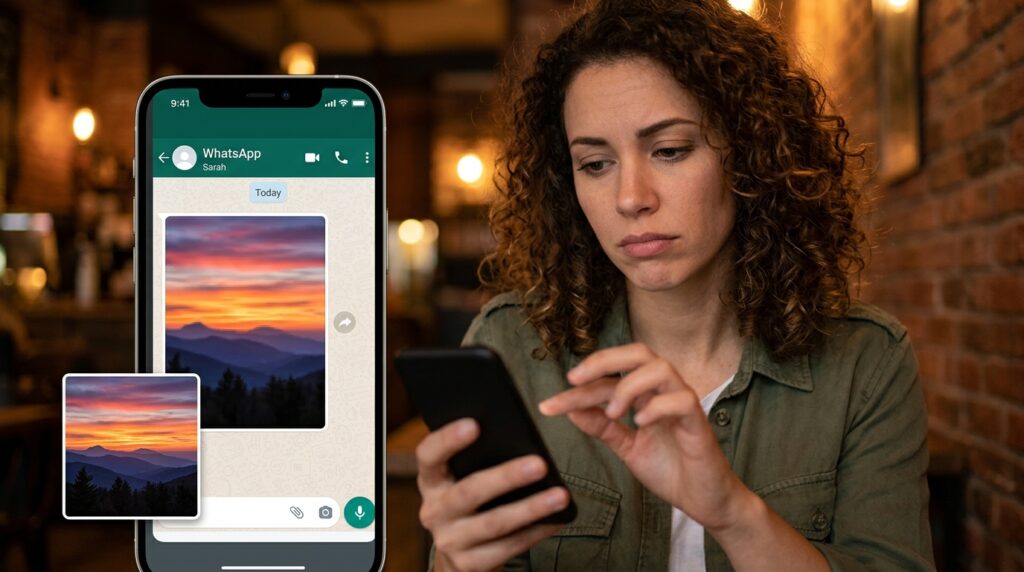
If you have ever tried to send a beautiful, high-resolution photo of a landscape to a friend over WhatsApp, you know the heartbreak of what happens next.
To save server space and make sending faster, the app aggressively compresses image files. That stunning, crisp sunset photo gets crushed down into a pixelated, blurry mess by the time it reaches the recipient’s screen.
For years, I told people, “Don’t send me photos on WhatsApp; email them to me instead.”
Then I discovered two completely different workarounds.
First, WhatsApp recently introduced an “HD” button. When you select a photo to send from your gallery, look at the top of the screen before you hit the send arrow. You will see a small “HD” icon. If you tap it, you can upgrade the photo from “Standard Quality” to “HD Quality.” It still compresses it slightly, but it looks infinitely better.
However, if you are a professional photographer or you need to send the absolute, uncompressed RAW file, you can bypass the image compression entirely. Instead of tapping the “Gallery” icon to attach a photo, tap the “Document” icon. You can then navigate to your phone’s file system and select the photo. By sending the image as a digital document rather than a picture, WhatsApp doesn’t touch the compression algorithm. The file arrives exactly as you shot it.
5. Formatting Your Text Like a Pro
Most people use WhatsApp like a continuous stream of consciousness. We send five rapid-fire messages in a row because a giant block of text is difficult to read.
I didn’t realize that the app actually supports a robust set of Markdown formatting tools. You can style your text to make it significantly easier to read, especially when you are sending professional updates or long-form thoughts.
Here are the basic formatting tricks:
-
Bold: Put an asterisk on either side of the word. (Like this)
-
Italics: Put an underscore on either side of the word. (Like this)
-
Strikethrough: Put a tilde on either side of the word. (~Like this~)
-
Monospace: Put three backticks on either side. (
Like this)
But recently, they added even more structural formatting. You can now create beautiful bulleted lists simply by typing a hyphen followed by a space (- ) before your sentence. You can create numbered lists by typing a number, a period, and a space (1. ).
When I am summarizing a meeting for my team or sending a grocery list, I use these formatting tools to structure the message perfectly. It stops the text from looking like a chaotic rant and makes it look like a polished, easily digestible email.
6. The Ultimate Privacy Tool: Chat Lock
Sometimes, you have conversations that require an extra layer of security.
Maybe you are planning a surprise birthday party for your partner, and you are terrified they might glance at your phone screen and see the notification pop up. Maybe you are discussing sensitive financial information with your accountant.
Historically, if someone had your unlocked phone in their hand—maybe they were picking a song on Spotify, or looking at a photo you showed them—they could easily tap the WhatsApp icon and see all your messages.
Not anymore. Enter the “Chat Lock” feature.
If you go to a specific contact’s profile, scroll down, and tap “Chat Lock,” the app completely hides that specific conversation from your main inbox. It moves the conversation to a hidden folder called “Locked Chats.”
To access this folder, you have to slowly swipe down on your main inbox screen, and then authenticate yourself using your phone’s biometrics (Face ID or your fingerprint). If someone borrows your unlocked phone, they still cannot read your locked chats without your physical face or fingerprint to open the vault. It provides profound peace of mind.
7. Taming the Voice Note Monster
Voice notes are a highly polarizing feature. Some people absolutely love them because they are faster than typing. Other people (like myself) find them incredibly frustrating, especially when someone sends a rambling, five-minute monologue that takes forever to get to the point.
I used to sigh heavily whenever I received a long audio message. Then, I noticed the tiny little “1x” icon that appears next to the voice note while it is playing.
If you tap that icon, it changes to “1.5x,” and if you tap it again, it changes to “2x.”
Discovering the ability to listen to voice notes at double speed fundamentally changed my relationship with the app. I can now digest a five-minute rant from a friend in exactly two and a half minutes. The pitch correction software ensures they don’t sound like a chipmunk; they just sound like they are talking very efficiently.
Furthermore, you don’t actually have to stay in the chat to listen to the note. You can hit play, back out of the chat, and navigate to other conversations while the audio continues to play at the top of your screen.

Final Thoughts on Exploring Your Tools
We spend hours customizing our physical homes, organizing our desks, and setting up our physical environments for maximum comfort. Yet, we spend hours every day inside mobile applications without ever bothering to adjust the furniture.
When you just accept the default settings of an app, you are letting the developers dictate how you communicate. Taking control of these settings was a revelation I covered deeply in my article about WhatsApp Settings I Changed That Made Messaging Easier. You have to make the software work for your specific lifestyle.
WhatsApp is a remarkably powerful piece of software masquerading as a simple texting tool.
Take ten minutes today to explore the settings menu. Pin a chat to yourself so you can capture your ideas. Lock down the group chats that are stealing your phone’s storage. Set a custom ringtone for the people who actually matter. By unlocking these hidden features, you can turn a chaotic, noisy messaging app into a streamlined, highly personalized communication hub.
