
For a very long time, my relationship with WhatsApp was fundamentally broken.
It wasn’t just an app on my phone; it felt like a demanding boss that lived in my pocket. Every time the screen lit up with that familiar green icon, I felt a tiny spike of cortisol. My phone was constantly buzzing with group chat memes, voice notes I didn’t have time to listen to, and urgent messages from colleagues who expected immediate replies.
I was drowning in a sea of unread notifications. I would look at my lock screen, see “47 New Messages from 12 Chats,” and feel entirely paralyzed. I was avoiding the app because the sheer volume of communication was too overwhelming.
One afternoon, I sat down and really analyzed why the app was causing me so much stress. I realized something profound: I was using WhatsApp exactly the way the developers wanted me to use it, not the way I needed to use it.
When you download a messaging app, the default settings are mathematically engineered to maximize your engagement. They are designed to keep you opening the app, checking the app, and replying as quickly as possible. The default settings do not care about your mental health, your focus, or your phone’s battery life.
I decided I was no longer going to be a passive user. I went deep into the settings menu and started aggressively toggling switches. I stripped away the features that caused me anxiety and customized the interface to serve my actual needs.
If you feel like your messaging apps are controlling your life instead of the other way around, it is time to take your power back. Here are the specific WhatsApp settings I changed that made messaging infinitely easier, less stressful, and completely manageable.
1. Disabling the “Blue Ticks of Anxiety” (Read Receipts)
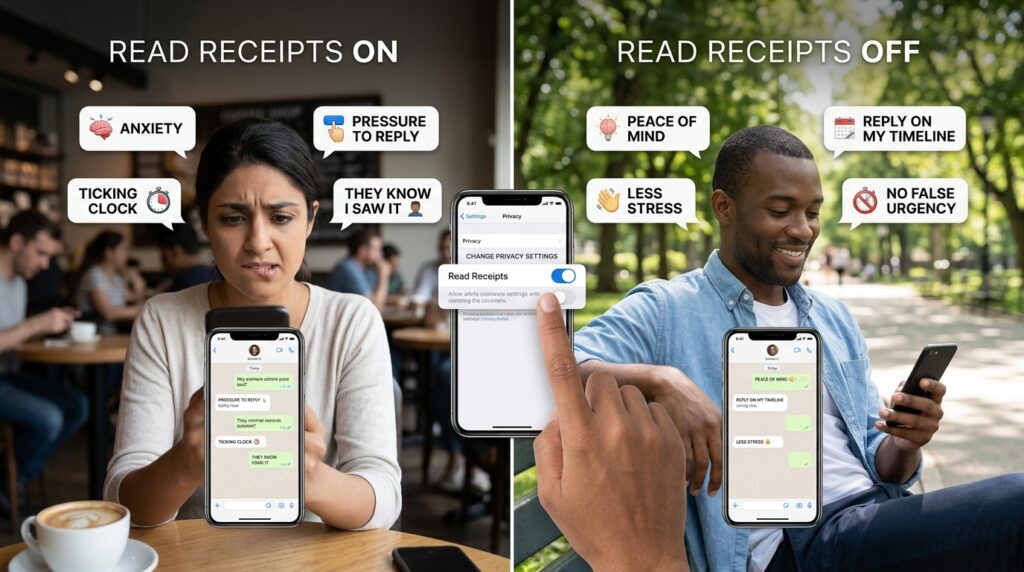
There is no feature in modern digital communication more psychologically manipulative than the Read Receipt.
Those two little blue checkmarks fundamentally altered the social contract of texting. In the past, if you received a message, you could read it and reply whenever you had the time or mental energy. But the blue ticks create an immediate, ticking clock.
If I opened a message from a friend to read it, but I was in the middle of cooking dinner and couldn’t reply right away, I knew they knew I had seen it. I would spend the next hour feeling incredibly guilty, imagining them sitting on their couch, staring at the blue ticks, wondering why I was ignoring them.
It was exhausting. So, I turned them off.
I went to Settings > Privacy > Read Receipts and toggled the switch off.
The relief was instantaneous and profound. Now, when someone sends me a message, I can open it, read it, process the information, and close the app without sending them a read receipt. I reply when I actually have the time and the focus to write a thoughtful response, not because I feel socially pressured by a colored checkmark.
It completely removes the false sense of urgency from daily communication. Reclaiming this digital boundary was a massive step for my mental clarity, a philosophy I explored deeply when writing about How I Reduce Distractions Using Mobile Apps. You have the right to read your messages on your own timeline.
2. Stopping the Auto-Download Storage Nightmare
Have you ever opened your phone’s main photo gallery to look for a picture of your dog, only to find it buried under hundreds of low-resolution internet memes, inspirational quotes, and blurry videos of fireworks?
For years, I couldn’t figure out why my phone was constantly running out of storage space. I was paying for premium cloud storage, yet I was always hitting the limit.
The culprit was WhatsApp’s default media settings. By default, the app automatically downloads every single photo, video, and audio file you receive and saves it directly to your phone’s camera roll. If you are in three active group chats, your phone is quietly hoarding gigabytes of digital garbage every single month.
I immediately put an end to this.
I went to Settings > Storage and Data > Media Auto-Download. I changed the settings for Photos, Audio, Video, and Documents to “Never” (or “Wi-Fi only” if you prefer, but I strongly recommend “Never”).
Then, I went to Settings > Chats and toggled off “Save to Camera Roll” (or “Media Visibility” on Android).
Now, when someone sends a photo in a group chat, it appears as a blurred preview in the chat window. If I want to see it, I tap it to download it. But—and this is the crucial part—it stays inside the WhatsApp application. It does not infect my personal camera roll.
If a family member sends a beautiful photo of my niece that I actually want to keep, I manually open the photo, tap the share button, and click “Save Image.” It requires one extra second of intention, but it permanently protects my phone’s storage from meme-induced bloat.
3. Taking Control of the “Last Seen” Status
Similar to Read Receipts, the “Last Seen” and “Online” status indicators are subtle forms of digital surveillance.
I used to hate the feeling that anyone in my contact list could open our chat and see exactly when I was last using my phone. If I told a colleague I was going to sleep at 10:00 PM, but then suffered from insomnia and opened WhatsApp at 2:00 AM, they could see that timestamp. It felt like a massive invasion of privacy.
Worse, the “Online” indicator meant that if I was currently typing a message to my mom, anyone else who opened my chat would see that I was actively holding my phone.
I shut the surveillance down.
I navigated to Settings > Privacy > Last Seen and Online. I changed “Who can see my Last Seen” to Nobody. Then, right below it, I changed “Who can see when I’m online” to Same as Last Seen.
I effectively became a digital ghost. I can open the app, read my messages, reply to the people I need to reply to, and close the app, all without broadcasting my activity to the rest of the world. Nobody needs to know your exact digital whereabouts twenty-four hours a day.
4. The Magic of “Keep Chats Archived”
Archiving chats used to be a completely useless feature.
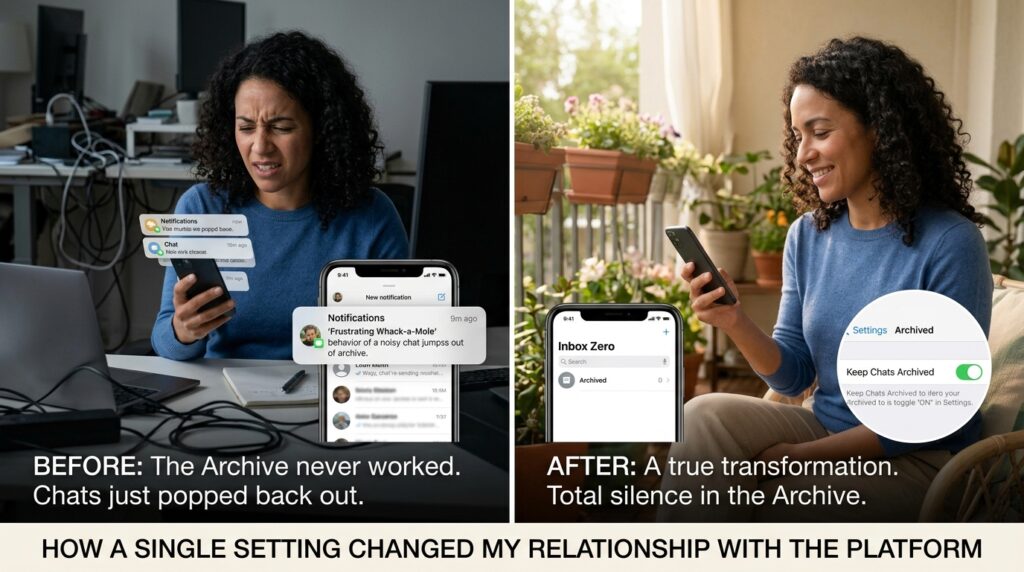
You would swipe a noisy, annoying group chat into your Archive folder to get it off your main screen. But the second someone sent a new message in that group, the chat would immediately jump out of the Archive and reappear at the top of your inbox, demanding your attention all over again. It was like playing a frustrating game of digital whack-a-mole.
Eventually, WhatsApp released a feature update that completely fixed this, and it is arguably the best setting in the entire app.
Go to Settings > Chats and toggle on Keep Chats Archived.
This fundamentally changes how the Archive works. Now, when you archive a chat, it stays buried in the Archive folder permanently, even when new messages arrive. You will not get a push notification, the app badge will not light up, and it will not clutter your main inbox.
I use this for massive event-planning groups, neighborhood association chats, and fantasy football leagues. The messages are still there, collecting quietly in a folder. When I am bored or actually want to catch up on the neighborhood gossip, I open the Archive and read them on my own terms.
Finding these quiet, hidden functionalities completely changed my relationship with the platform, a transformation similar to the one I detailed in Hidden WhatsApp Features I Discovered After Years. The Archive folder became my ultimate tool for maintaining “Inbox Zero.”
5. Customizing Notifications (The VIP Filter)
Not all messages are created equal. A text from my partner asking me to pick up milk on the way home is significantly more important than a text from a former coworker sharing a link to a podcast.
However, by default, WhatsApp treats every single message exactly the same. It plays the exact same chime and vibrates the exact same way. This trains your brain to treat every notification as an urgent emergency.
I stopped treating all my contacts equally and set up a VIP notification system.
I opened the chat with my partner, tapped their name at the top of the screen to open their profile, and selected Wallpaper & Sound (or “Custom Notifications”). I assigned a highly specific, pleasant chime exclusively to them. I did the same for my boss, and my immediate family members.
For everyone else, I left the default tone. Then, for the group chats that I actually want to stay in but don’t want to hear from, I hit the Mute button and set it to “Always.”
Now, when my phone is sitting on my desk and makes a sound, I don’t even have to look at the screen. If I hear the VIP chime, I know I need to check it. If I hear the standard tone, I know it can wait until I finish my current task. I am no longer a slave to every random vibration in my pocket.
6. Utilizing Default Message Timers (Disappearing Chats)
We treat our text message threads like permanent historical archives. We hoard years and years of casual conversations, grocery lists, and “sounds good” messages as if they belong in a museum.
The vast majority of our daily communication is ephemeral. It only matters in the moment it is sent. Storing thousands of old, useless messages slows down the app and makes finding actual, important information incredibly difficult.
To combat this, I started using Disappearing Messages.
For casual chats with friends where we just share jokes or make temporary weekend plans, I go into the contact’s profile, tap Disappearing Messages, and set the timer to 7 Days or 24 Hours.
This means that after the timer expires, the messages automatically delete themselves from the server and from both of our phones. It keeps the chat thread incredibly clean, light, and fast. It also provides a great layer of security if you need to send someone a sensitive piece of information, like a Wi-Fi password or a gate code. The app automatically cleans up the mess for you.
7. Mastering the New Chat Filters
This is one of the most recent updates to the app, and it is a massive quality-of-life improvement for anyone who manages a high volume of messages.
If you look at the very top of your main WhatsApp inbox, right below the search bar, you will see a row of small, pill-shaped buttons: All, Unread, Favorites, and Groups.
For years, if you received twenty messages while you were in a meeting, you had to manually scroll down your massive inbox, looking for the little green dots to find the unread chats. It was incredibly easy to accidentally miss an important message from a client because it got pushed down by three active group chats.
Now, I simply tap the “Unread” filter. The app instantly hides all the chats I have already dealt with and presents me with a clean, focused list of only the conversations that require my attention.
I also heavily utilize the “Favorites” filter. I added my most critical contacts and essential work groups to my Favorites list. When I am in a rush and need to quickly message my manager, I don’t use the search bar; I just tap Favorites, and my top five contacts are sitting right there. Navigating the app with these filters saves me an incredible amount of scrolling time, a workflow hack that aligns perfectly with the principles I laid out in Simple App Shortcuts That Save Me Hours Every Week.

Final Thoughts on Digital Boundaries
We spend an astronomical amount of time inside our messaging applications. They are the primary way we interact with the people we love, the people we work with, and the world around us.
When you accept the default settings of these apps, you are allowing a tech company to dictate the terms of those relationships. You are allowing them to decide when your phone vibrates, who gets to interrupt your focus, and how much digital pressure you should feel to reply.
You have to set your own digital boundaries.
By turning off read receipts, hiding your online status, locking away your archived chats, and establishing custom notification sounds, you completely change the dynamic. You transform WhatsApp from a chaotic, demanding environment into a quiet, obedient tool.
Take fifteen minutes tonight to go through your settings menu. Toggle the switches. Silence the noise. You will be amazed at how much lighter and more peaceful your digital life feels when you finally take control of the controls.
