
I used to think that being “good at email” just meant typing really fast.
For the first few years of my career, I treated my Gmail inbox like a chaotic game of digital whack-a-mole. An email would pop up, I would frantically click it, type out a panicked response, hit send, and immediately return to the main screen to wait for the next red notification to appear. I was operating in a perpetual state of reaction.
By the end of the week, I was always completely exhausted. I realized something highly depressing: I wasn’t actually doing my job anymore. My job had just become managing my inbox.
I finally decided to sit down and do a ruthless time audit. The results were horrifying. I was spending an average of almost three hours a day just navigating the Gmail interface, reading newsletters I didn’t actually care about, manually sorting files, and typing out the exact same responses to different clients. That equated to roughly sixty hours a month—an entire week and a half of work—lost entirely to administrative friction.
I realized that if I didn’t take absolute control of my communication hub, I was going to burn out. I stopped viewing Gmail as a passive mailbox where things just happened to me, and I started treating it like a highly customizable database that I could bend to my will.
Finding tools to reclaim my attention and streamline my digital environment was a massive priority, a journey I documented heavily in Apps That Help Me Focus When Working From My Phone. The biggest breakthrough, however, didn’t come from downloading a new application; it came from hacking the one I already spent three hours a day staring at.
If you are tired of drowning in unread messages and feeling like you are constantly one step behind your own correspondence, it is time to upgrade your system. Here are the advanced Gmail tips and hidden settings that literally save me hours every single month.
1. The Ultimate Speed Hack: Keyboard Shortcuts and Auto-Advance
Most people use their computer mouse to navigate Gmail. They click to open an email, click the reply box, click the send button, and then click the little back arrow to return to their inbox.
Moving your hand back and forth between the keyboard and the mouse takes about two seconds. Doing that a hundred times a day adds up to a massive amount of wasted time.
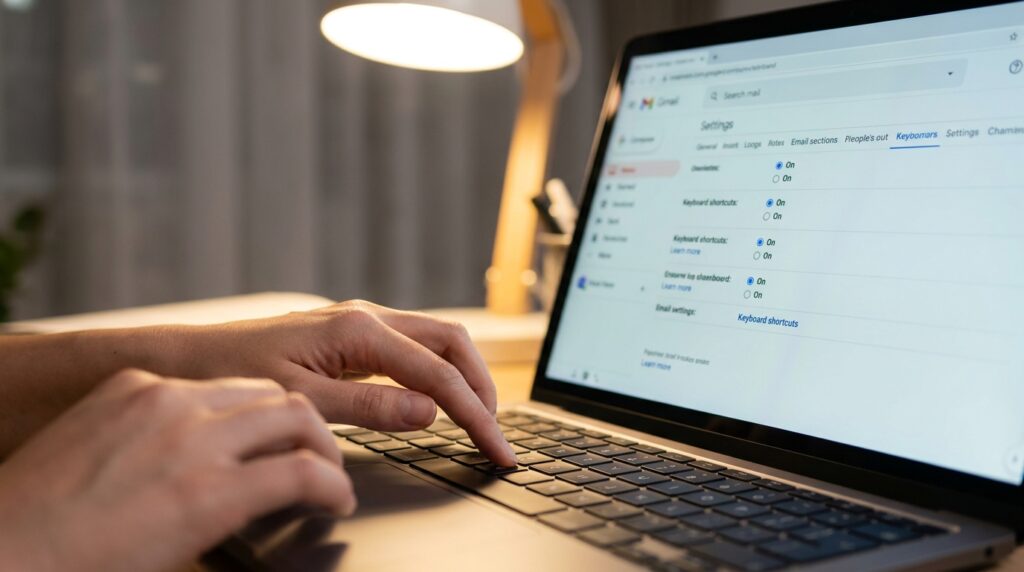
I went into Settings > See all settings > General and toggled Keyboard shortcuts on.
Then, I went to the Advanced tab and enabled a feature called Auto-advance.
Now, my workflow is lightning fast. I press “j” and “k” on my keyboard to move up and down my inbox list. I press “e” to archive an email. Because of the Auto-advance feature, instead of dumping me back into the main inbox (where I will inevitably get distracted by a new subject line), Gmail immediately opens the next unread email in the queue. I can aggressively clear thirty emails in two minutes without my fingers ever leaving the home row of my keyboard.
2. Letting AI Handle the Heavy Lifting (“Help Me Write”)
There are moments when you just sit there, staring at a blank compose window, struggling to find the right, polite corporate phrasing to tell someone their idea is terrible, or trying to figure out how to gracefully decline an invitation.
Recently, Google completely changed the game by integrating their Gemini AI natively into the interface. When I am stuck or suffering from writer’s block, I no longer waste ten minutes drafting and deleting sentences. I click the little pen icon with the sparkle at the bottom of the compose window to activate Help me write.
I just type a raw, unfiltered prompt: “Tell the vendor we are passing on their proposal because it’s too expensive, but keep it polite and leave the door open for next year.”
In three seconds, the AI generates a beautifully formatted, highly diplomatic email. I can even click the “Refine” button to make the text sound more formal, or ask it to shorten the draft if it feels too wordy. Getting over the blank-page paralysis has saved me hours of agonizing over word choices.
3. Summarizing the “Reply All” Nightmare
We have all been looped into an email thread that is already forty-five messages deep. Two departments have been arguing back and forth all morning, and finally, someone tags you and asks, “What are your thoughts on this?”
In the past, you had to scroll all the way to the bottom and painstakingly read the entire history of the chain to understand the context.
Now, I use the Gemini side panel. I open the massive thread, click the Gemini star icon in the top corner, and simply ask it to “Summarize this email.” The AI scans the entire convoluted history of the conversation and spits out a clean, three-bullet-point summary of the core arguments and exactly what is being asked of me. I can respond intelligently in thirty seconds without wasting twenty minutes reading office politics.
4. Canned Responses (Templates) for Repetitive Inquiries
Even with AI, there are certain emails you send identically every single week. It might be the onboarding instructions for a new client, driving directions to your office, or answers to a frequently asked pricing question.
Typing these out from scratch—or even copying and pasting them from a Word document—is a massive waste of cognitive energy.
I went into Settings > Advanced and enabled Templates.
Now, whenever I type out a perfect, comprehensive response to a common question, I click the three dots at the bottom of the compose window, select “Templates,” and hit “Save draft as template.” The next time a client asks that specific question, I just open a reply, click the template button, and insert the text. It takes literally two seconds.
Automating these repetitive communication loops is exactly the kind of leverage I discussed in The Apps That Make My Work Life So Much Easier. Why on earth would you type the exact same paragraph twice?
5. The “Search Operator” Superpower
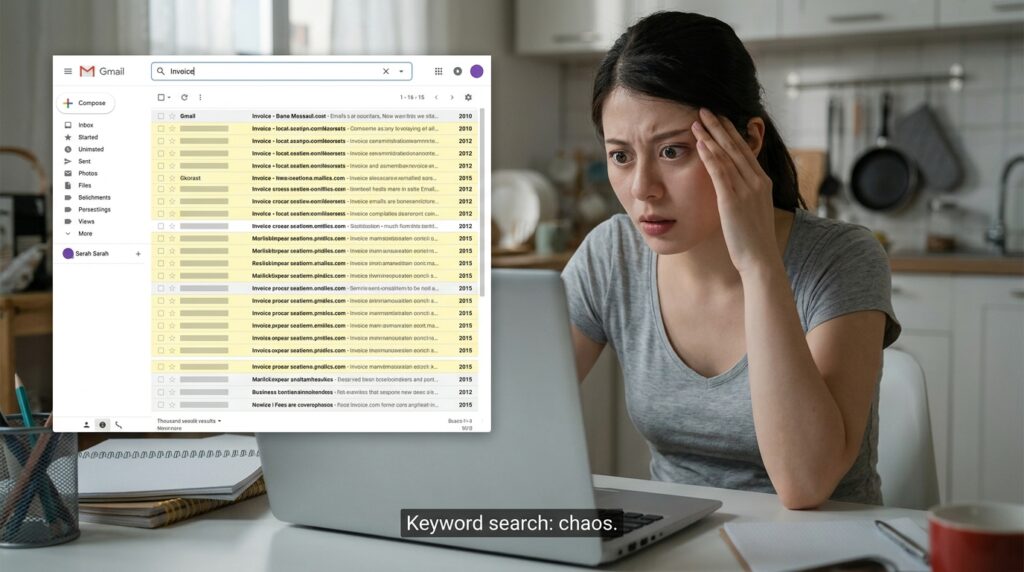
The standard Gmail search bar is notoriously clunky if you only use basic keywords. If you type the word “Invoice,” the algorithm will return thousands of results spanning the last decade, and you will spend ten minutes scrolling to find the right one.
I stopped scrolling and finally learned the Advanced Search Operators. You can type these specific commands directly into the search bar to filter the noise instantly.
-
has:attachment(Only shows emails that actually have a file attached). -
from:[email protected](Only shows emails from a specific person). -
older_than:1y(Great for bulk-deleting old junk). -
size:5m(Finds emails larger than 5 megabytes, which is amazing for clearing out your Google Drive storage space).
If I need to find a specific contract my lawyer sent me last summer, I don’t go digging through folders. I just type from:[email protected] has:attachment before:2025-08-01. The exact document appears immediately on the screen. It is a targeted strike.
6. Ruthless Automation with Filters and Labels
Most people manually drag and drop emails into colored folders. This requires constant, daily maintenance. I decided to make the software do the sorting for me before I ever even look at the screen.
I set up automated rules under the Filters and Blocked Addresses settings tab.
If an email comes from a specific software vendor (like Adobe or Zoom), my filter automatically applies a gray “Receipts” label to it and immediately archives it. I never even see it hit my primary inbox, but I know exactly where it is when tax season arrives.
If an email contains the word “Unsubscribe” in the body text, my filter automatically routes it to a “Newsletters” label. This keeps my main inbox purely focused on actual human communication, and I can go read those newsletters on a Saturday morning with a cup of coffee, rather than letting them interrupt my Tuesday afternoon workflow.
7. Controlling the Chaos with Multiple Inboxes
By default, Gmail dumps every single incoming email into one massive, chronological list. Your urgent client emergencies are sitting right next to your mother’s forwarded recipe and a 20% off coupon for running shoes.
I completely redesigned the visual architecture of my screen using Multiple Inboxes.
Under Settings > Inbox, I changed my Inbox type from “Default” to “Multiple Inboxes.” I created custom panes that sit side-by-side on my screen. One pane is purely for emails I have labeled “Action Required.” Another pane is for emails labeled “Awaiting Reply” (so I know who I need to follow up with).
This allows me to visually separate my actual work from the general noise. Juggling various client demands requires a strict visual hierarchy, a philosophy I break down completely in How I Stay Organized While Managing Multiple Projects. Now, I don’t just passively read emails; I process them through a pipeline.
8. Time Travel: Snooze and Send Later
You do not have to deal with every email the exact second it arrives.
If my manager emails me on a Friday afternoon asking for a complex report by Tuesday, leaving that email sitting in my inbox all weekend will just give me low-grade anxiety every time I look at my phone. Instead, I click the little clock icon at the top of the email and hit Snooze until Monday at 8:00 AM. The email magically vanishes from my inbox, giving me a clean digital slate for the weekend, and reappears exactly when I am sitting at my desk, ready to actually work on it.
Conversely, if I am working late on a Sunday night because I want to get ahead, I absolutely do not hit “Send” on my replies. Doing so sets a terrible precedent that I am available and working 24/7. Instead, I click the arrow next to the Send button and hit Schedule Send for Monday at 9:00 AM. I get the work off my plate, but the recipient gets it during normal business hours. It protects my professional boundaries perfectly.
9. Muting the Noise (The “Mute” Feature)
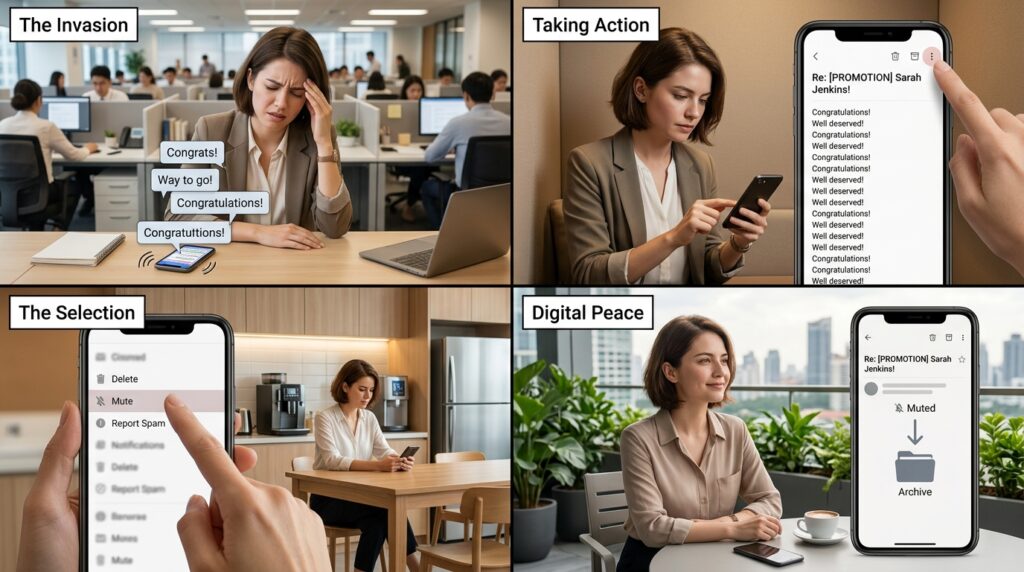
We have all been trapped in the dreaded corporate mass email chain. Someone sends a message to fifty people congratulating a coworker on a promotion, and for the next three hours, your phone vibrates every thirty seconds with people hitting “Reply All” to say “Congrats!” and “Way to go!”
You do not have to suffer through this barrage of useless notifications.
Open the email thread, click the three dots at the top of the screen, and select Mute.
The conversation is instantly silenced. Any future replies to that specific thread will automatically bypass your inbox and go straight to your archive folder. You will never see them, and your phone will never buzz. It is the ultimate digital boundary for noisy, irrelevant office chatter.
10. The “Undo Send” Lifesaver
Finally, we have to talk about the feature that has saved my professional reputation more times than I can count.
You write a fiery email, hit send, and then immediately notice a massive typo in the first sentence. Or worse, you realize you completely forgot to attach the critical file you specifically mentioned in the second paragraph.
By default, Gmail gives you a terrifyingly short 5-second window to click “Undo.” That is barely enough time to realize you made a mistake.
I went into Settings > General and changed the Undo Send cancellation period to the absolute maximum of 30 seconds.
Now, when I send an email, it hangs in a hidden outbox for half a minute before actually leaving Google’s servers. It gives me thirty seconds of pure, unadulterated grace to spot my error, hit “Undo,” and attach the PDF before anyone on the other end ever knows I messed up. It is the greatest safety net in modern corporate communication.
Final Thoughts: Reclaiming Your Inbox
Email was originally designed to be an asynchronous communication tool. It was meant to be checked periodically, processed efficiently, and put away. It was not meant to be monitored constantly like a ticking time bomb.
When you accept the default settings of your email client, you are operating entirely at the mercy of whoever decides to email you. You are constantly reacting to their priorities, rather than dictating your own.
By taking thirty minutes to dive deep into your settings—enabling keyboard shortcuts, building templates, setting up automated filters, and utilizing the incredible new AI tools—you completely flip the power dynamic.
You transform your inbox from a chaotic, demanding to-do list into a streamlined, highly efficient communication machine. Stop letting your email manage your day. Take control of the software, apply these hacks, and watch how quickly you buy back your own time.
